Create a Cluster
Provision workload clusters for deploying applications and hosting environments.
Summary
This guide walks you through creating a new cluster in Konstruct. Clusters can be either physical Kubernetes clusters or virtual clusters, and can use either Konstruct's default templates or your custom templates.
Prerequisites
- Platform Admin or Team Admin role
- Access to the Konstruct UI
- A cloud account configured in your organization
- At least one environment created (for workload clusters)
Create Cluster
-
Navigate to Clusters in the left sidebar
-
Click Create cluster to open the cluster creation form
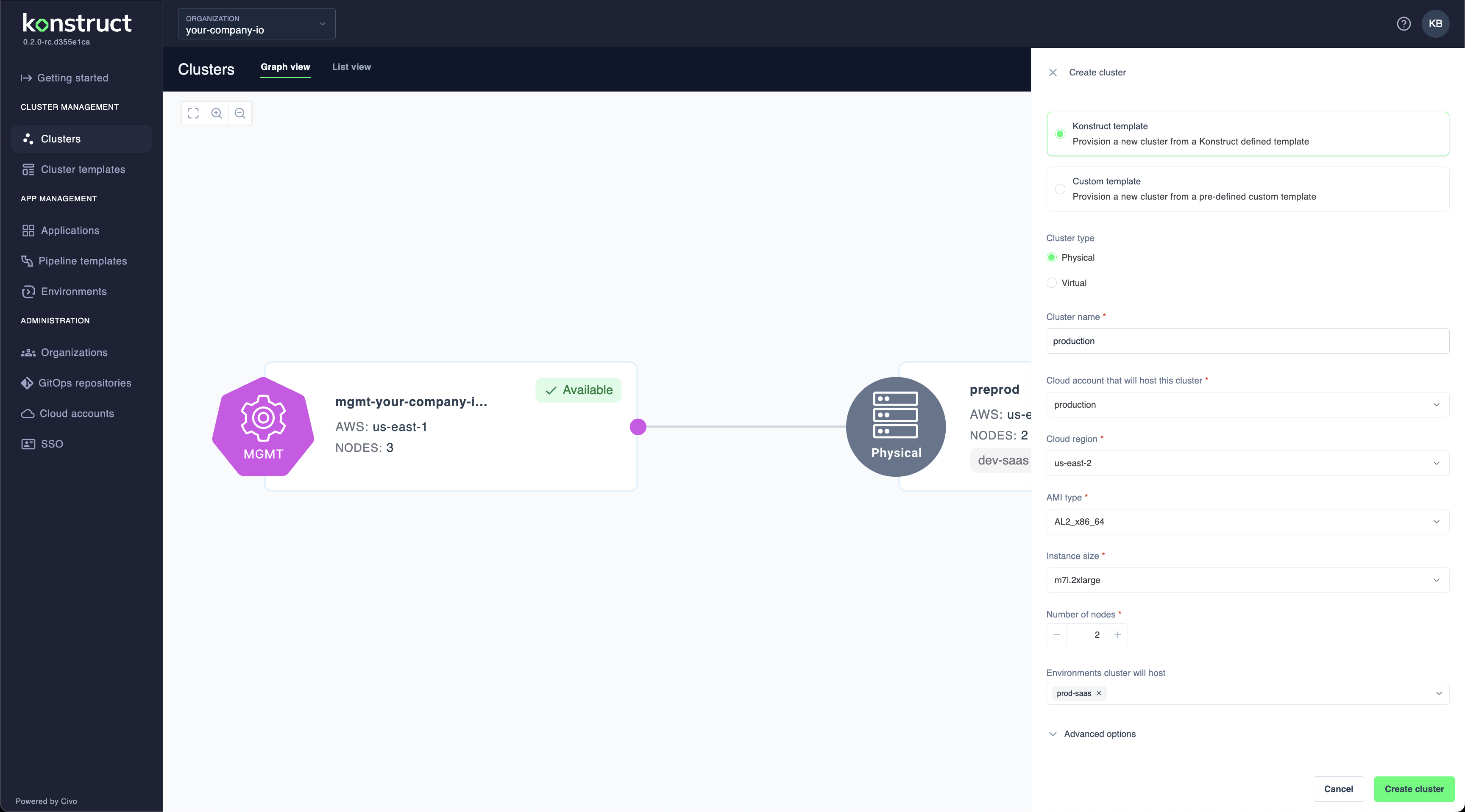
Template Selection
Choose how to configure your cluster:
- Konstruct template: Use a predefined template with standard configurations
- Custom template: Use a custom cluster template you've created
Cluster Configuration
-
Configure the basic cluster settings:
Cluster type:
- Physical: Full Kubernetes cluster with dedicated infrastructure
- Virtual: Lightweight virtual cluster for development/testing
Cluster name: Enter a unique name (e.g., "production")
Cloud account: Select the AWS account to provision the cluster in
Cloud region: Choose the AWS region (e.g., "us-east-2")
-
Configure the cluster infrastructure:
AMI type: Select the Amazon Machine Image type (e.g., "AL2_x86_64")
Instance size: Choose the EC2 instance type (e.g., "m7.2xlarge")
Number of nodes: Set the initial node count (minimum 2 for production)
-
Configure environment hosting:
Environments cluster will host: Select which environment this cluster will host (e.g., "prod-saas")
Advanced Options
-
Expand Advanced options if needed to configure additional cluster settings
-
Click Create cluster to provision the cluster
Important Notes
- Physical clusters require more resources and take longer to provision
- Virtual clusters are faster to create and consume fewer resources
- Cluster names must be unique within your organization
- You cannot change the cluster type after creation
What's Next?
- Register applications to deploy to your cluster
- Create environments to organize your deployments
- Set up pipeline templates for automated deployments