API Keys
Summary
API keys let you authenticate scripts, CI pipelines, and the Konstruct MCP server without using an interactive SSO session. Each key carries the same role-based permissions as an interactive user, lasts at most 1 year, and can be scoped either to a single organization or to all the organizations you belong to.
API keys are in beta. Behavior, limits, and audit surfaces may change in future releases.
Prerequisites
- A Konstruct account with at least the Developer role in the organization you're issuing the key for. The role you can grant to a key is capped by your role in that specific organization, so a Platform Admin in one org may only be able to grant Developer in another.
- An organization selected in the top Viewing as switcher when creating a key for a single org, or any org selected when creating a global key that covers every org you belong to.
Key Types
Konstruct issues two key types. The prefix identifies which type you're holding.
| Type | Prefix | Use it for |
|---|---|---|
| API key | konst_api_ | Scripts, CI jobs, direct calls to the Konstruct API. |
| MCP key | konst_mcp_ | AI assistants connecting through the Konstruct MCP server (for example, Claude Code). |
Both key types honor the role you assign at generation time. You can only grant a role at or below your own role in the target organization.
Choose a Scope
Before you generate a key, decide where it should work:
| Scope | When to use it |
|---|---|
| One organization | A key that's restricted to a single org. Use it for scripts, CI jobs, or MCP clients that only ever touch that org. The role you grant is capped by your role in that org. |
| All your organizations | A global key that works across every org you belong to right now, with whatever role you have in each. Use it for cross-org automation, personal tooling, or developer environments that span teams. |
Generate a Key
-
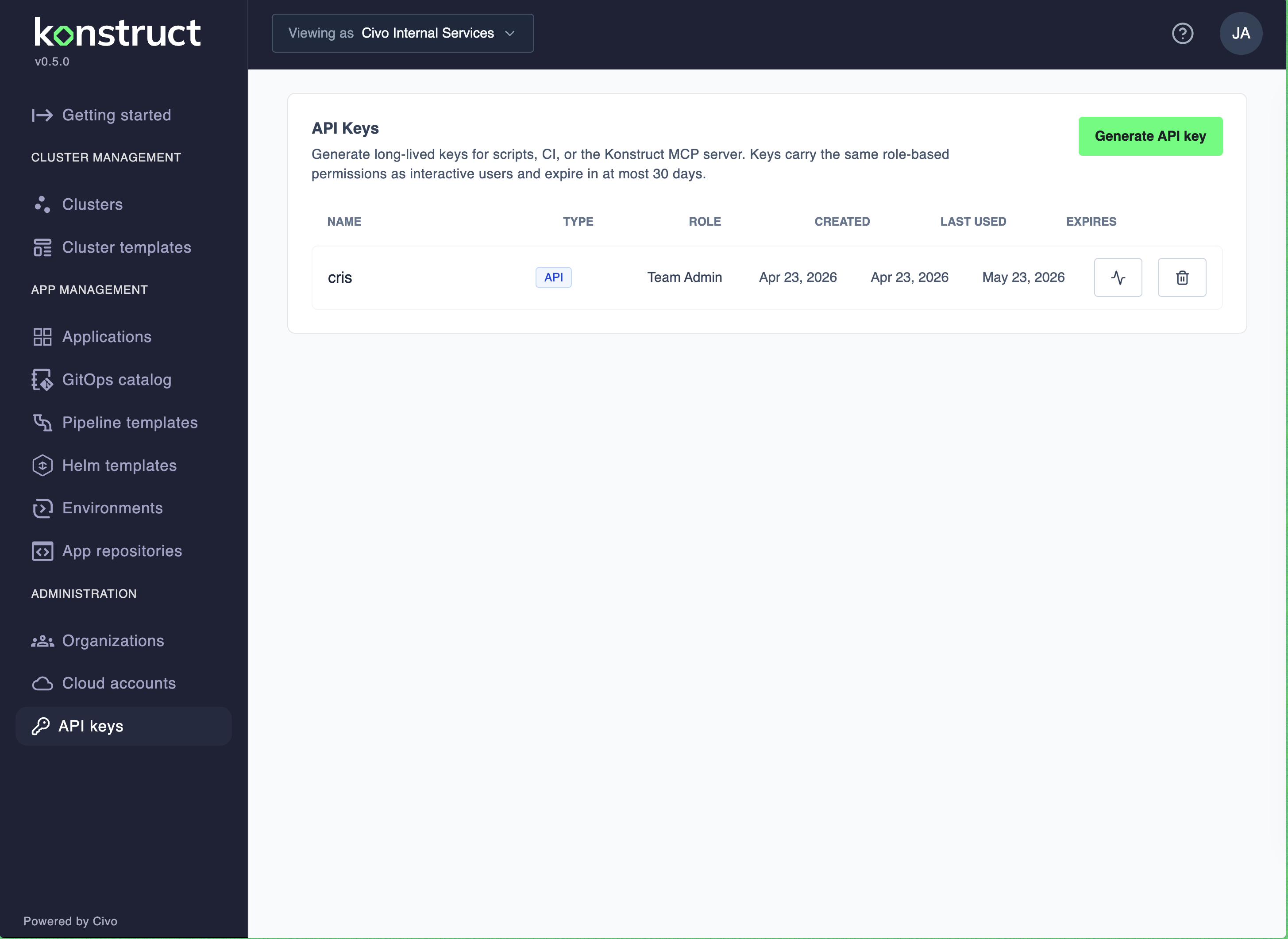
Open API keys in the left sidebar under Administration.
-
Select Generate API key.
-
Pick a Scope — One organization or All your organizations.
-
Fill in the rest of the form. The fields differ slightly by scope (see below).
-
Select Generate key.
-
Copy the key value from the confirmation dialog. This is the only time the key is shown — store it in your secret manager before closing.
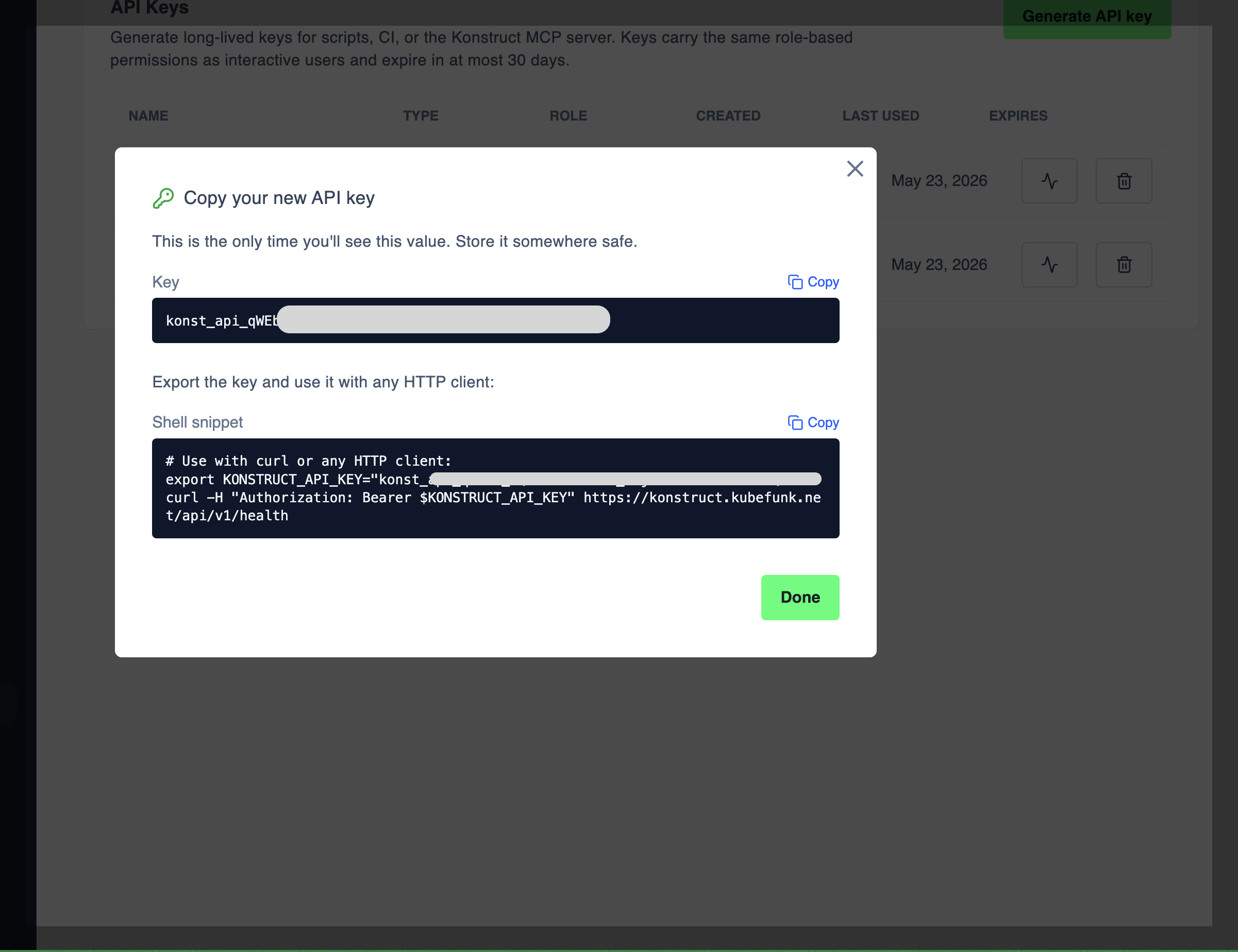
If you close the dialog without copying the key, you must delete it and generate a new one. Konstruct never stores or displays the plaintext key again.
One organization
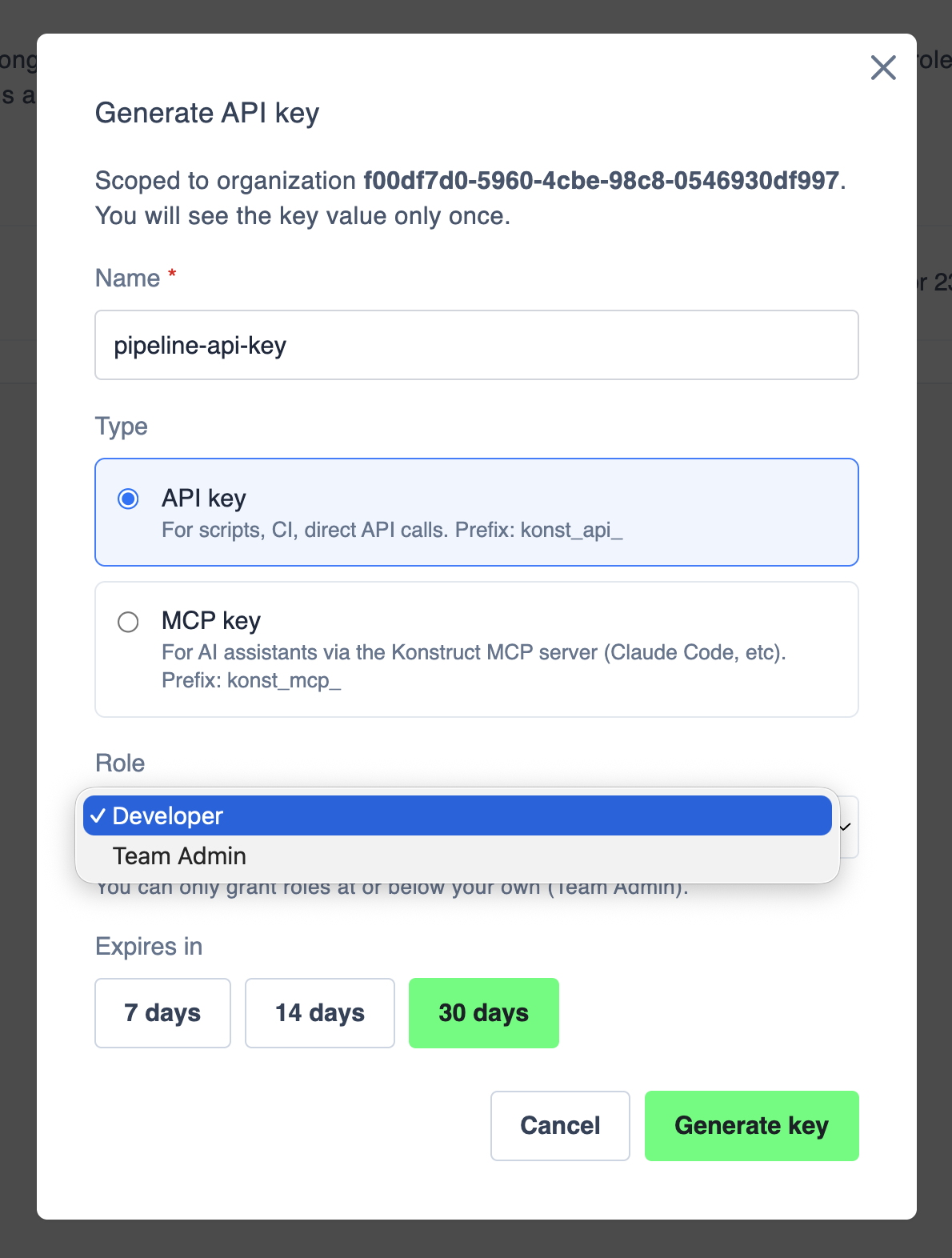
Confirm the organization in the Viewing as switcher — the key will be scoped to this organization. Then fill in:
- Name — a short identifier shown on the list (for example,
pipeline-api-key). - Type — choose API key or MCP key.
- Role — pick the role to grant. The dropdown only shows roles at or below your own role in that organization. A Platform Admin in Org A might only see Developer here when minting a key for Org B if Developer is all they have there.
- Expires in — choose how long the key stays valid. The default is 30 days and the maximum is 1 year (365 days).
All your organizations
Use this scope when a single key needs to work in every org you belong to. Konstruct snapshots your current per-org roles into the key, so each org keeps the role you have there today. The form drops the Role picker — there's nothing to choose, the role per org comes from your current memberships.
Fill in:
- Name — a short identifier (for example,
dev-laptop-key). - Type — API key or MCP key.
- Expires in — same options as above.
A global key captures your roles at issue time. If you join a new org or your role in an existing org changes after the key is generated, the key isn't updated. Revoke and re-issue when your access changes.
Use a Key
With curl
The copy dialog includes a ready-to-paste shell snippet. Export the key as an environment variable and send it as a Bearer token:
export KONSTRUCT_API_KEY="konst_api_..."

curl -H "Authorization: Bearer $KONSTRUCT_API_KEY" \
  https://<your-konstruct-host>/api/v1/health
Replace <your-konstruct-host> with your Konstruct control plane hostname. The same Authorization: Bearer header works for MCP keys when configuring an MCP client.
With the TypeScript SDK
The @konstructio/konstruct-sdk wraps the same REST API and handles authentication for you. It's the recommended path for scripts and Node/Bun projects — typed responses, grouped resources, and no manual URL building.
Install it in a Bun or Node project:
bun add @konstructio/konstruct-sdk
# or: npm install @konstructio/konstruct-sdk
Export the key the same way as the curl snippet, then pass it to the client:
import { KonstructClient, type Cluster } from '@konstructio/konstruct-sdk';

const client = new KonstructClient({
  apiUrl: 'https://<your-konstruct-host>',
  apiToken: process.env.KONSTRUCT_API_KEY,
});

// Health check
const health = await client.health.healthCheck();
console.log('Health:', health);

// List environments and pick a namespace to scope further calls
const environments = await client.clusters.environments.listEnvironments();
const teamNs = environments[0].namespace;

// Teams and clusters scoped to that namespace
const teams = await client.teams.teams.listTeams(teamNs);
const teamClusters = await client.teams.management.listTeamClusters(teamNs);

// Fetch a specific cluster by name
const cluster = await client.clusters.clusters.getCluster(teamNs, 'my-cluster') as Cluster;
console.log('Cluster:', cluster);

// Git accounts (org-wide)
const gitAccounts = await client.git.accounts.listGitAccounts();
Resources are grouped on the client (client.clusters.environments, client.teams.teams, client.git.accounts, client.health, …). Explore the available groups with editor autocomplete on client. — every group mirrors a section of the Konstruct REST API.
Run it with Bun (which auto-loads .env):
KONSTRUCT_API_KEY=konst_api_... bun run index.ts
The SDK sends the key as a Bearer token on every request, so the same role-based permissions and audit records described below apply.
View Key Usage
Select the activity icon next to a key on the API keys list to see recent calls.
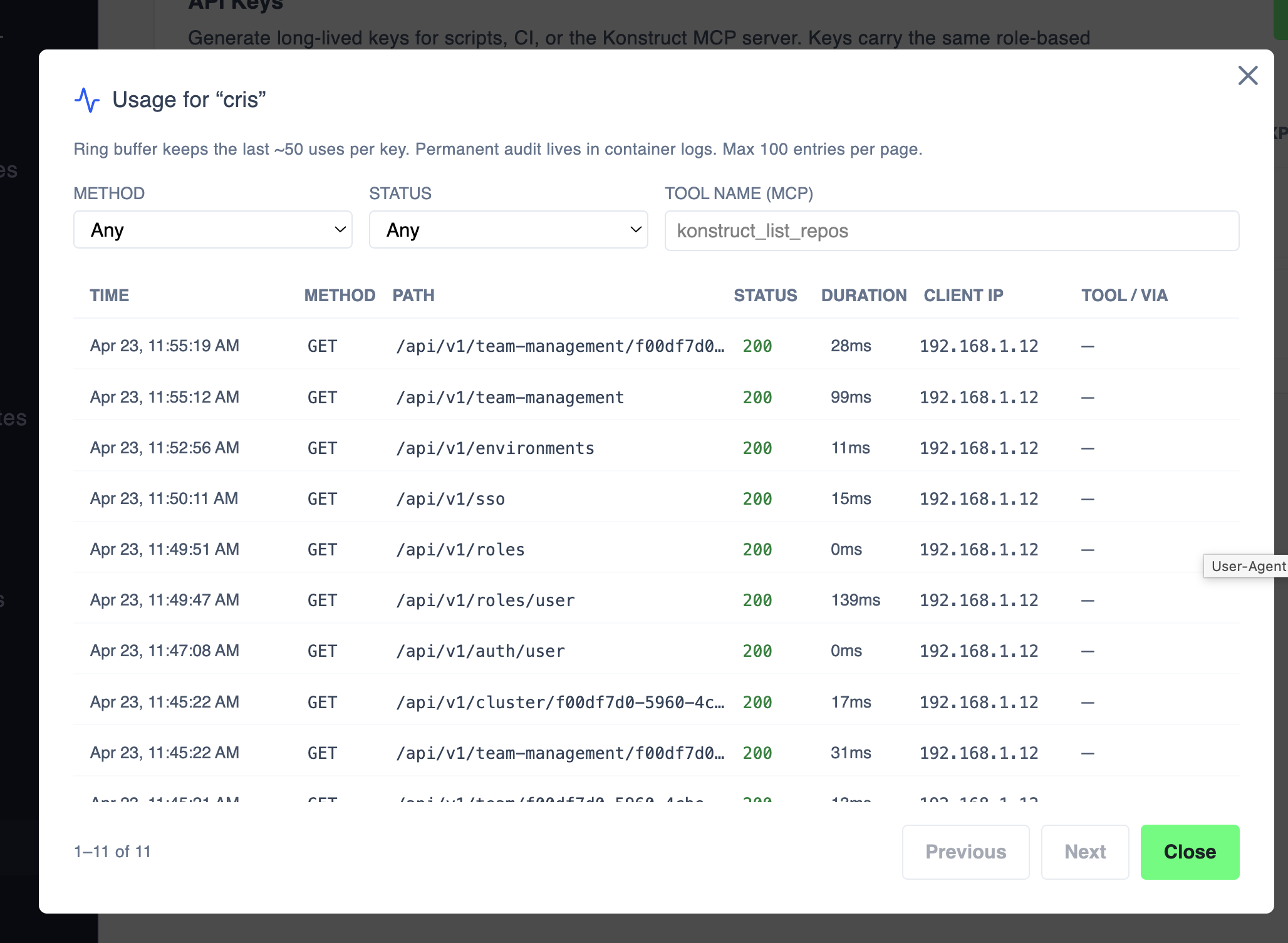
The dialog shows:
- Time, Method, Path, Status, Duration, Client IP, and Tool / Via for each call.
- Filters for Method, Status, and (for MCP keys) Tool name.
The activity view is a ring buffer that keeps the last ~50 calls per key and shows up to 100 entries per page. The permanent audit trail lives in the Konstruct API container logs — query those for long-term investigation.
Find Your Keys
The API keys page filters by the org you have selected in Viewing as. To see every key you own across every org you belong to — including any All your organizations keys — switch to the All your keys view at the top of the page. Single-org and global keys appear together so you don't have to remember which org a key was issued under.
Revoke a Key
- On the API keys list, find the row for the key. Global keys live in the All your keys view.
- Select the trash icon to delete it.
- The key is revoked immediately. Any script, pipeline, or MCP client using that key begins receiving
401 Unauthorized.
Rotate a key the same way: generate a new one, update your consumers, then delete the old key.
What's Next?
- Review Roles and Permissions — roles are evaluated per organization, so the role you can grant a key depends on the org it's for.
- See Organizations for how key scope and organization selection interact.