Cluster Management
Managing Clusters
- Hosted
- Self-Hosted
Konstruct uses a two-tier cluster architecture when running on the Hosted Control Plane. Civo manages the control plane for you.
- Management cluster (Civo) — Hosts Argo CD, Crossplane, and platform tooling. Provisioned in your Civo account.
- Workload clusters — Run your applications. Provisioned in your cloud account and managed by your management cluster.
Konstruct uses a two-tier cluster architecture from your perspective, with your own control plane cluster sitting above it:
- Management cluster — Hosts the control plane (Argo CD, Crossplane, platform tooling) that manages your workload clusters. Each organization needs one.
- Workload clusters — Run your applications and environments. You can create multiple workload clusters per organization.
To get started, first create a management cluster, then create workload clusters.
Add a Workload Cluster
These steps walk through the process of adding a new workload cluster to your Konstruct setup.
Note: Cluster provisioning typically takes 15-20 minutes.
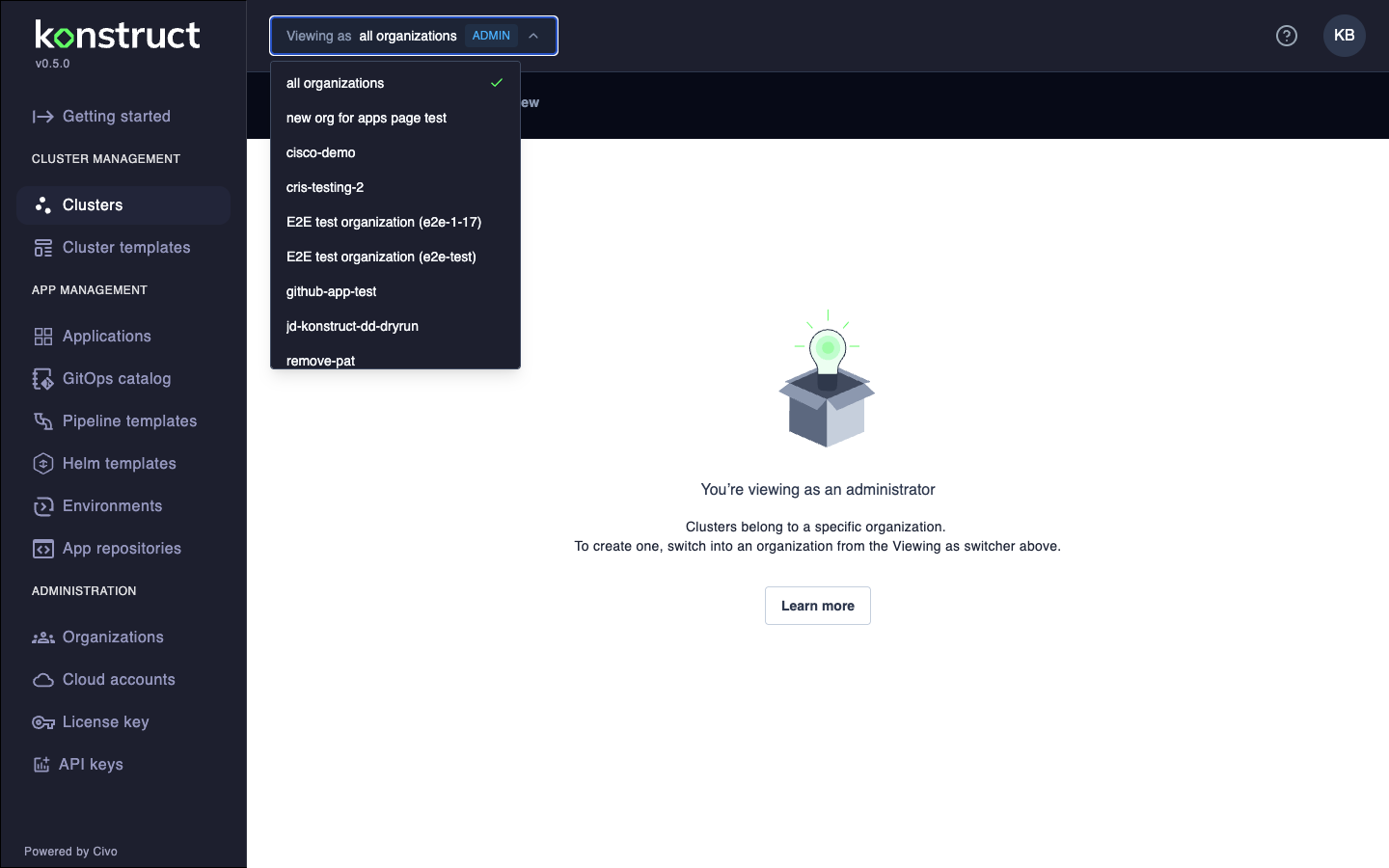
- Use the Viewing as switcher in the top banner to select the organization you want to provision the cluster for
- Click Add workload cluster on the Clusters page
- Select the cluster type:
- Physical - Full Kubernetes cluster with dedicated infrastructure
- Virtual - Lightweight virtual cluster (faster, lower cost)
- Configure the cluster:
- Hosted (Civo)
- Self-Hosted (AWS)
- Cluster name - Unique name for the cluster
- Cloud account - Civo account to provision the cluster in
- Region - Civo region (e.g.,
NYC1,LON1,FRA1) - Node size - Civo instance size (e.g.,
g4s.kube.large) - Number of nodes - defaults to 2 (recommended minimum)
- Environment (optional) - Environment this cluster will host
- Cluster name - Unique name for the cluster
- Cloud account - AWS account to provision the cluster in
- Cloud region - AWS region (e.g.,
us-west-2) - AMI type - Amazon Machine Image type (e.g.,
AL2_x86_64) - Instance size - EC2 instance type (e.g.,
m5.xlarge) - Number of nodes - defaults to 2 (recommended minimum)
- Environment (optional) - Environment this cluster will host
- Click Add cluster to start provisioning
For custom templates, see Custom Cluster Templates.
Delete a Cluster
- Navigate to the Cluster management view in the Konstruct UI.
- Select the cluster you want to delete and click on the individual cluster to display the full details.
- From the context menu on the top right (three little dots), select Delete Cluster.
Deletion Process
Once you select Delete Cluster the process is as follows:
- Selecting Delete Cluster removes the corresponding content in your
gitopsrepository. You can check that process in yourgitopsrepository to verify that cluster details were deleted. - The removal of the cluster in
gitopstriggers Argo CD and removes any associated applications. You can check that process in Argo CD. - The final step, removing the
infrastructureapp removes the cluster from the cloud. - Once Argo CD shows a
clustersapp that is healthy and fully synced you can consider the deletion complete.