Custom Templates
Summary
You can bring your own cluster templates and specify custom Terraform modules for cluster infrastructure creation. This feature enables you to define custom input variables that dynamically prompt users during cluster creation.
Custom templates are available for:
- Workload clusters — Development and production application clusters
- Team management clusters — Organization management and control plane clusters
Prerequisites
Git Repository
You need a git repository in your Organization's GitHub org for your custom cluster templates and terraform modules. For a great example starting point, please fork our upstream.
https://github.com/konstructio/konstruct-templates
Terraform Knowledge
- Familiarity with Terraform module structure
- Understanding of provider requirements
- Knowledge of your cloud provider's Terraform resources
Repository Access Setup
Public Repositories
Public repositories work without additional configuration.
Private Repositories
For private repositories, you'll need to provide access credentials when creating the custom template:
- GitHub: Create a personal access token with repository read permissions.
You'll provide these credentials in the Konstruct UI when configuring your custom template.
Validation Checklist
Before proceeding:
- Git repository created
- Repository access configured
Using Custom Templates
Create a Custom Template
A cluster template is a directory in a git repository that holds the GitOps content Konstruct uses when creating a cluster. Konstruct supports two authoring formats:
- Helm chart format — recommended. Author your template as a standard Helm chart with
Chart.yaml,values.yaml, and atemplates/directory. Konstruct renders the chart with Helm at provision time. - Token replacement format — the original v1 format. Flat YAML files with
<TOKEN>placeholders defined in akonstruct.yamlfile at the template root.
Konstruct picks the engine automatically based on which file is present at the template path: values.yaml selects the Helm format, otherwise it falls back to konstruct.yaml.
Helm chart format (recommended)
A Helm-based cluster template is a standard Helm chart at the template path:
your-template-repo/cluster-templates/civo/project-cluster/
├── Chart.yaml
├── values.yaml
└── templates/
    ├── 10-infrastructure.yaml
    ├── 30-cert-manager.yaml
    └── …
When a user creates a cluster from this template, Konstruct reads values.yaml to discover the input fields, renders the create form with the right field types, then Helm-renders the chart with the user-supplied values plus Konstruct's built-in values (cluster name, GitOps repository URL, cloud provider, domain, etc.) and commits the result into the organization's GitOps repository.
For a complete reference, see cluster-templates/civo/project-cluster in the upstream konstruct-templates repository.
Define inputs in values.yaml
Use # @input.* comment annotations on the line(s) directly above each input field. Konstruct parses these to render the cluster-creation form.
# @input.type: string
# @input.description: Alert email address for cert-manager notifications
# @input.required: true
# @input.tip: ops@example.com
email: ""

# @input.type: enum
# @input.description: External DNS provider
# @input.options: cloudflare,route53,google
# @input.default: cloudflare
externalDnsProviderName: cloudflare
| Annotation | Purpose |
|---|---|
@input.type | Field type — string, enum, boolean, or secret. |
@input.description | Help text shown next to the field. |
@input.required | true to require a non-empty value before submitting. |
@input.default | Default value. The YAML value on the line below is also picked up as a default. |
@input.options | Comma-separated list of allowed values. Required for enum. |
@input.tip | Placeholder example shown inside the input. |
The field name is taken from the YAML key on the line immediately below the annotation block.
Reference values in templates/
Inside templates/, use Helm template syntax to reference both your inputs and Konstruct's built-in values:
apiVersion: argoproj.io/v1alpha1
kind: Application
metadata:
  name: {{ .Values.workloadClusterName }}-infrastructure
  namespace: argocd
spec:
  source:
    repoURL: {{ .Values.gitopsRepoUrl }}
    path: registry/konstruct-clusters/{{ .Values.workloadClusterName }}/infrastructure
  destination:
    name: in-cluster
    namespace: {{ .Values.workloadClusterName }}
Konstruct populates standard values such as workloadClusterName, gitopsRepoUrl, and the cluster's domain. See the upstream Civo project-cluster chart for the full set of values used in production.
Cluster type
Set clusterType at the top level of values.yaml to tell Konstruct which kind of cluster this template produces:
clusterType: physical # physical | virtual | management | control-plane
management marks the chart as a team-management cluster template, control-plane is reserved for the platform's own seed template, and the others are workload cluster types. Every Helm-format template must declare clusterType at the top level of values.yaml.
Token replacement format (legacy)
This is the original v1 authoring format. Existing templates continue to work, but new templates should prefer the Helm chart format.
A token-replacement template is a directory of YAML files that use <TOKEN> placeholders. Konstruct comes with built-in tokens (e.g. <WORKLOAD_CLUSTER_NAME>, <GITOPS_REPO_URL>) and lets you define your own.
-
In your template root directory, create a
konstruct.yamlfile. -
Define the cluster type and input variables:
clusterType: "physical" # physical|virtual|gpu
inputs:
  - name: "cidr"
    token: "<WORKLOAD_CIDR>"
    prompt: "Enter your workload cluster VPC CIDR block"
    tip: "10.0.0.0/16"
  - name: "business-unit"
    token: "<BUSINESS_UNIT>"
    prompt: "Enter your business unit name"
tip: "e.g. 'engineering', 'sales', 'marketing'" -
Use the tokens directly in your GitOps yaml content wherever values should be replaced per instance.
-
Commit and push the new
konstruct.yamlfile to your git repository.
Create a Cluster with your Custom Template
Connect to your cluster template
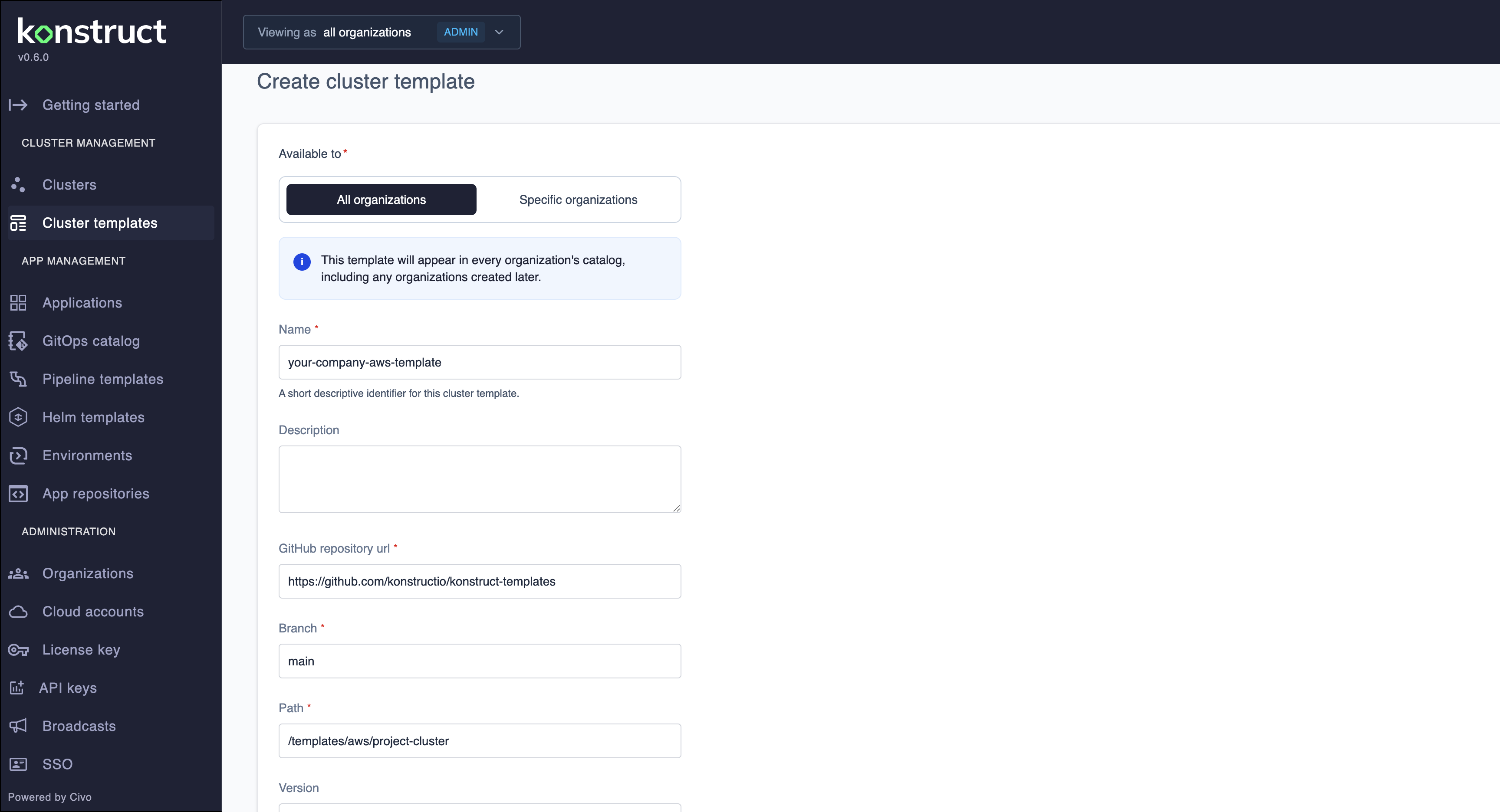
- Select Create Cluster.
- Choose Custom Template from the template dropdown.
- Provide the URL for your custom template's git repository
- Specify the path in that git repository where the workload cluster template folder resides
- Enter the branch or tag name to define the version of your template
- Provide a PAT if your git repository is private
- Click Connect
Complete your cluster creation details
- Complete standard cluster options (name, region, nodes).
- Complete the custom prompted variables:
- Each input defined in
konstruct.yamlwill appear as a form field - The prompt text guides the user on what the field is
- Tips provide example values
- Each input defined in
- Select Create Cluster.
The resulting yaml that gets committed to your gitops repository will have your tokens replaced with the values that were provided by the end user. These values will also be available on your cluster details view.
Workload Cluster Template Requirements
The conventions in this section describe the legacy token replacement format. For Helm chart templates, see the Helm chart format section above.
Directory Structure
The konstruct.yaml file is required in the cluster template's top folder.
your-template-repo/any-template-folder/
├── konstruct.yaml
├── argocd-application-1.yaml
├── argocd-application-2.yaml
└── argocd-application-1/
    ├── application.yaml
    └── external-secret.yaml
└── argocd-application-2/
    ├── application.yaml
    └── external-secret.yaml
└── terraform/
    ├── main.tf
    ├── eks/
    └── vpc/
Here is an example Argo CD application with a custom token
apiVersion: argoproj.io/v1alpha1
kind: Application
metadata:
  annotations:
    argocd.argoproj.io/sync-wave: "10"
  name: konstruct
  namespace: argocd
spec:
  destination:
    name: in-cluster
    namespace: konstruct
  project: default
  source:
    chart: konstruct
    repoURL: https://charts.konstruct.io
    targetRevision: "<MY_CUSTOM_VERSION_TOKEN>"
  syncPolicy:
    automated:
      prune: true
      selfHeal: true
    syncOptions:
    - CreateNamespace=true
Leveraging Tokens in your Cluster Terraform Module
Your terraform code in your cluster module will use terraform variables just like you always would.
# variables.tf example
variable "vpc_cidr" {
  description = "VPC CIDR block"
}

variable "business_unit" {
  description = "Business unit for tagging"
}
In order to provide input values to these terraform variables, specify your tokens in your workspace as shown here
apiVersion: tf.upbound.io/v1beta1
kind: Workspace
metadata:
  name: <WORKLOAD_CLUSTER_NAME>-infrastructure-bootstrap
spec:
  providerConfigRef:
    name: <WORKLOAD_CLUSTER_NAME>
  forProvider:
    source: Remote
    module: git::https://github.com/konstructio/konstruct-templates.git//terraform/aws/modules/downstream-bootstrap?ref=main
    vars:
    - key: cluster_name
      value: "<WORKLOAD_CLUSTER_NAME>"
    - key: vpc_cidr
      value: "<WORKLOAD_CIDR>"
This example shows the use of native konstruct token <WORKLOAD_CLUSTER_NAME> as well as a custom token <WORKLOAD_CIDR>.
These values will be replaced by the system and user inputs.
Advanced options
As shown in the example above, it's most common to simply use the module that is specified in your Workspace. If you want to override the default module that your workload cluster template uses however, simply expand the Advanced options, and specify the location of the repository and the path to the module.
Team Management Cluster Templates
Platform admins can create custom templates for team management clusters to standardize organization-specific infrastructure patterns.
When to Use Team Management Templates
Use custom team management templates when you need to:
- Customize IAM policies and roles for your organization
- Integrate with existing security and compliance tools
- Add organization-specific monitoring or logging
- Configure custom networking or VPC settings
Creating Team Management Templates
Team management cluster templates follow the same structure as workload cluster templates:
- Create a
konstruct.yamlfile in your template directory - Define organization-specific input variables
- Include terraform modules for management cluster infrastructure
- Add any required Argo CD applications for management tools
Example konstruct.yaml for team management:
clusterType: "management"
inputs:
  - name: "management-vpc-cidr"
    token: "<MGMT_VPC_CIDR>"
    prompt: "Enter management cluster VPC CIDR block"
    tip: "10.100.0.0/16"
  - name: "compliance-profile"
    token: "<COMPLIANCE_PROFILE>"
    prompt: "Select compliance profile"
    tip: "SOC2, HIPAA, PCI"
Using Custom Team Management Templates
- Navigate to Administration > Organizations
- Click Create Team
- Select Custom Template for the management cluster
- Provide your custom template repository details
- Complete the custom input variables
- Click Create Team
The custom template will be used when provisioning the team's management cluster infrastructure.