Create a Workload Cluster
Provision workload clusters for deploying applications and hosting environments.
Summary
Workload clusters run your applications and environments. Once you have a management cluster provisioned, you can create multiple workload clusters to organize your infrastructure by environment, team, or purpose.
Prerequisites
- Platform Admin or Team Admin role
- A management cluster provisioned for your organization
- A cloud account configured in your organization
- A cluster template registered for your organization — unlike the management cluster (which ships a built-in
Konstruct default), workload and theme clusters resolve org-scopedClusterTemplateresources. Register one against the upstream konstruct-templates repository (for Civo:cluster-templates/civo/workload-clusterfor workloads,cluster-templates/civo/theme-clusterfor theme clusters) or bring a custom template
Clusters Page Overview
After your management cluster is provisioned, the Clusters page shows a graph view of your cluster topology with the management cluster and any existing workload clusters.
From this page, click Add workload cluster to create a new cluster.
Create Workload Cluster
-
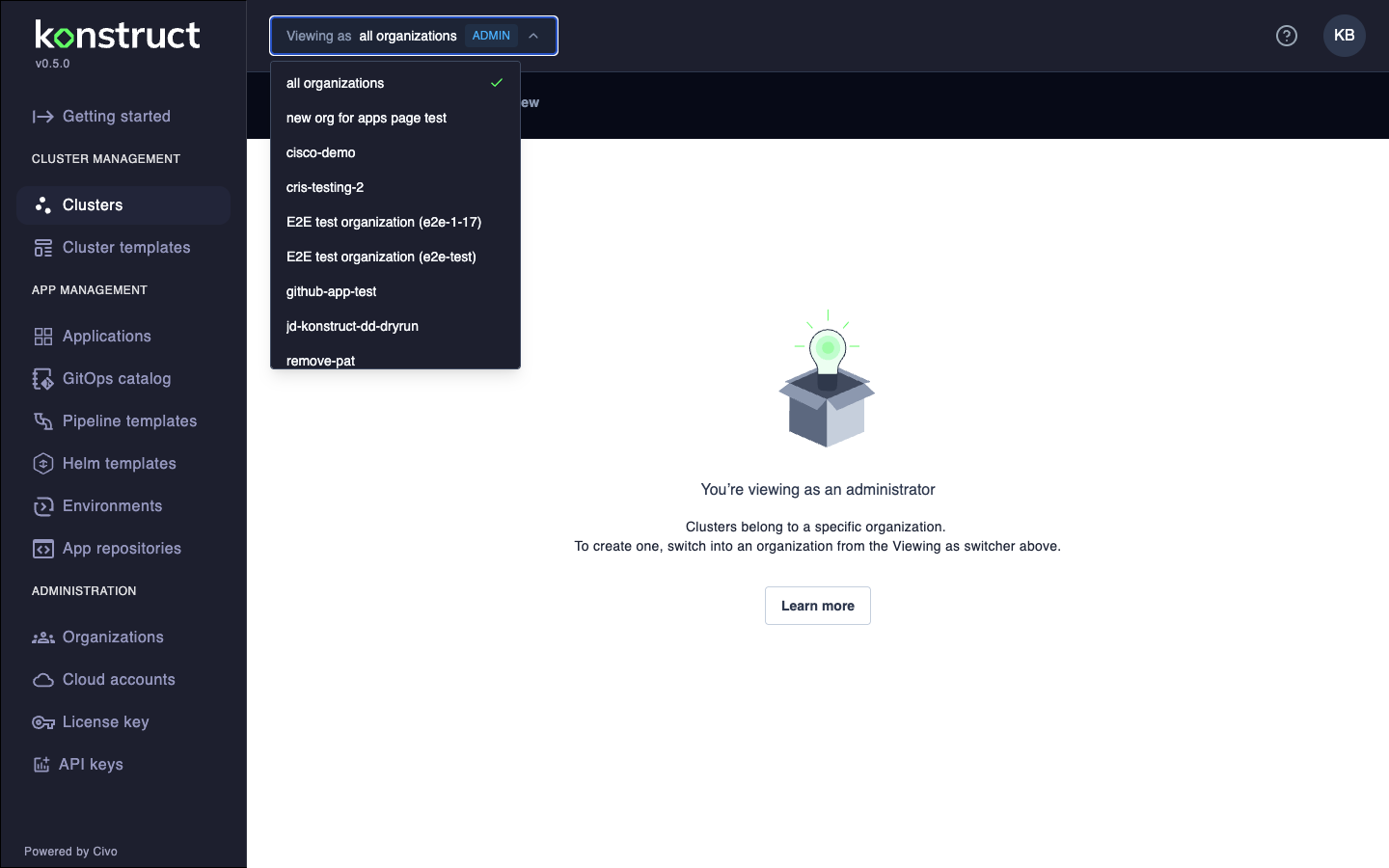
Use the Viewing as switcher in the top banner to select the organization you want to provision the cluster for
-
Navigate to Clusters in the left sidebar
-
Click Add workload cluster
-
The cluster creation form opens in a side panel:
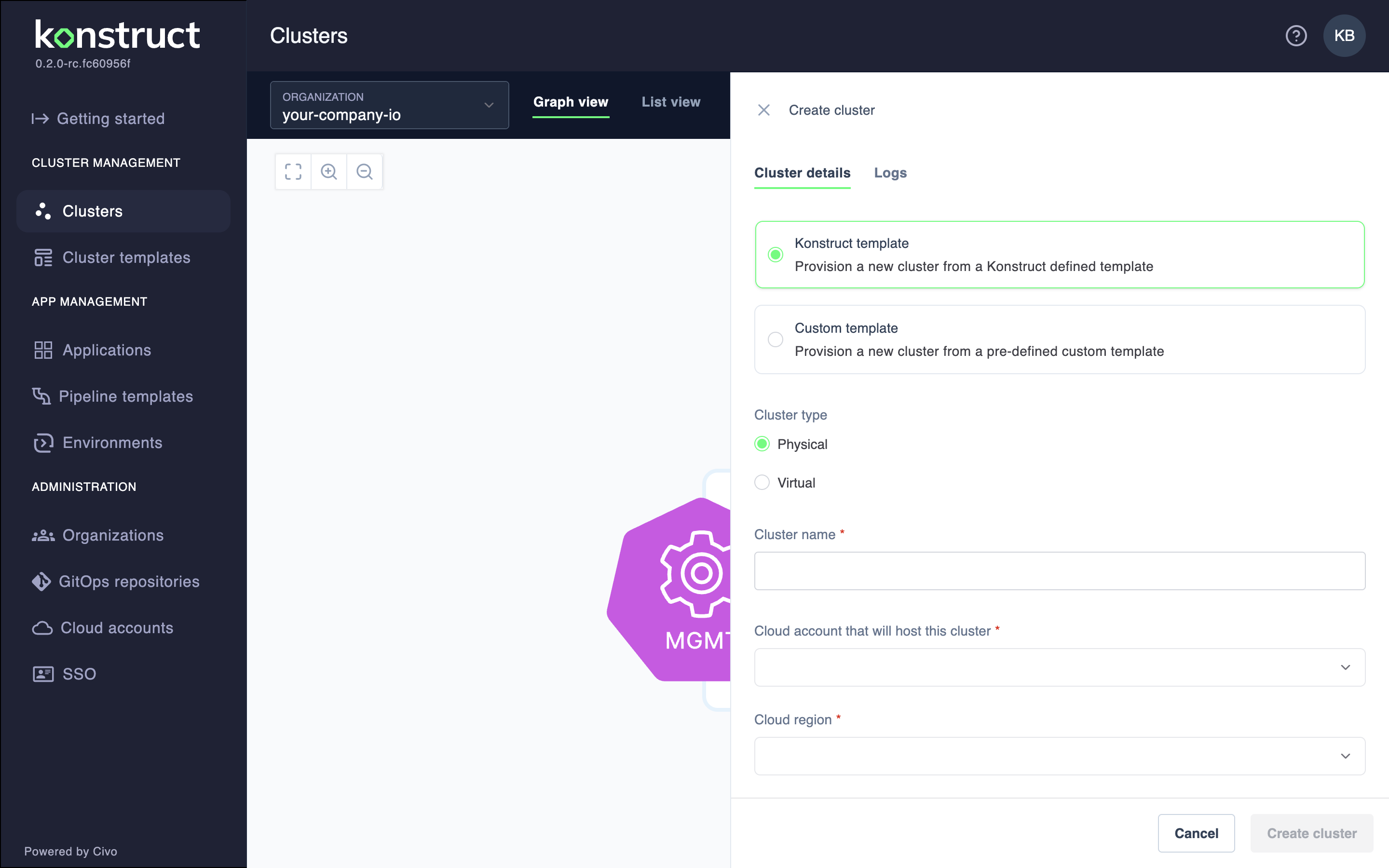
Cluster Type
Choose the type of cluster to create:
- Physical: Full Kubernetes cluster with dedicated cloud infrastructure
- Virtual: Lightweight virtual cluster that shares resources with other clusters (faster to create, lower cost)
Cluster Configuration
- Configure the cluster settings:
- Hosted (Civo)
- Self-Hosted (AWS)
| Field | Description | Example |
|---|---|---|
| Cluster name | Unique name for the cluster | development |
| Cloud account | Civo account to provision the cluster in | my-civo-account |
| Region | Civo region for the cluster | NYC1 |
| Node size | Civo instance size for nodes | g4s.kube.large |
| Number of nodes | Initial node count (minimum 2 recommended) | 2 |
Civo cluster types do not use AMI types or EC2 instance sizes. Select a Civo node size such as g4s.kube.small, g4s.kube.medium, or g4s.kube.large.
| Field | Description | Example |
|---|---|---|
| Cluster name | Unique name for the cluster | development |
| Cloud account | AWS account to provision the cluster in | development |
| Cloud region | AWS region for the cluster | us-west-2 |
| AMI type | Amazon Machine Image type | AL2_x86_64 |
| Instance size | EC2 instance type for nodes | m5.xlarge |
| Number of nodes | Initial node count (minimum 2 recommended) | 2 |
- Optionally select an environment for the cluster to host
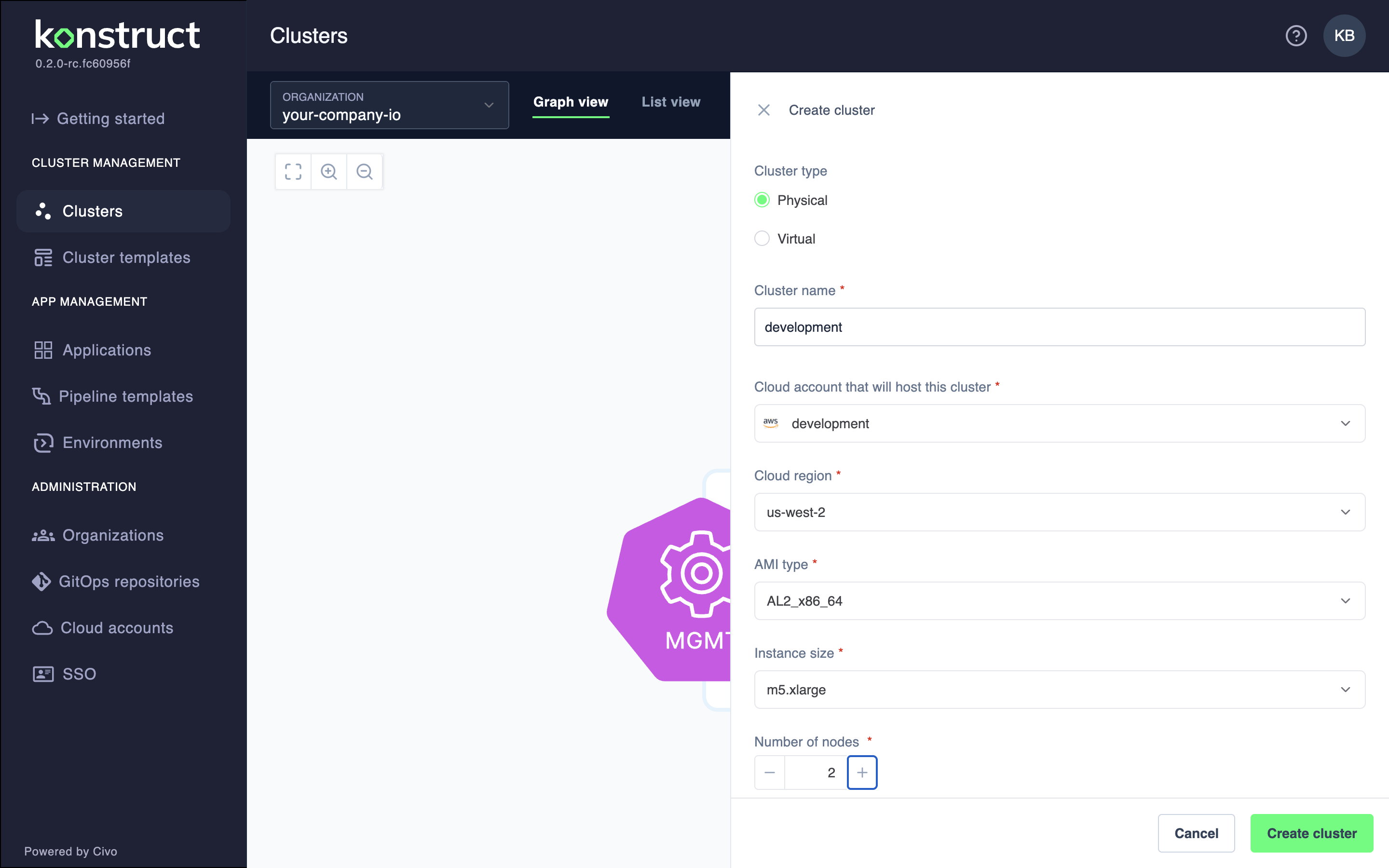
Example Configuration
Here's an example of a filled form for a development cluster:
- Click Add cluster to start provisioning
Monitor Provisioning
After clicking Add cluster, the form closes and the Clusters page shows your new cluster in a provisioning state:
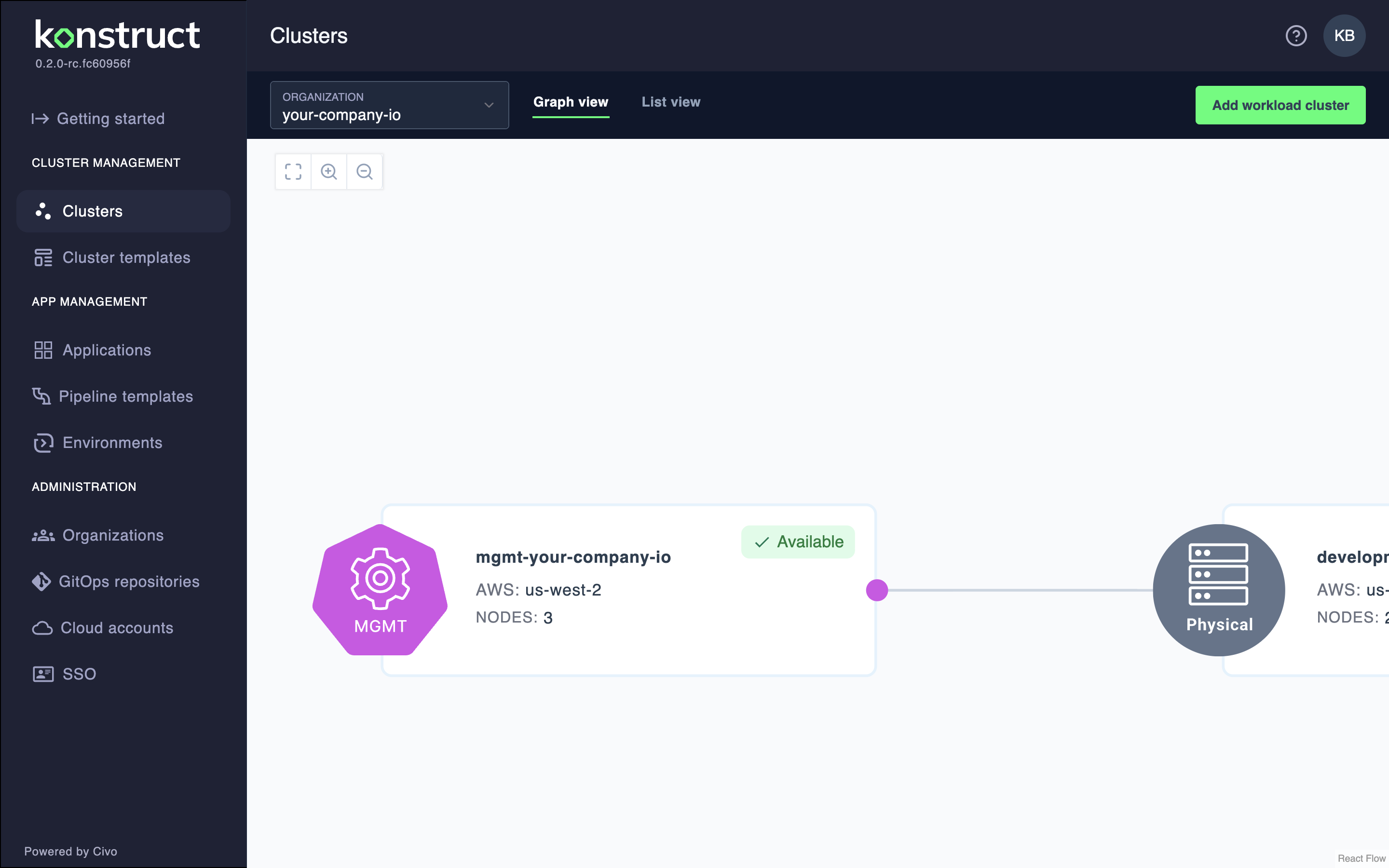
Workload cluster provisioning typically takes 15-20 minutes. You can:
- View provisioning progress in the cluster details panel
- Check the Logs tab for real-time provisioning output
- Monitor the cluster status in Argo CD
Instance Size Guidelines
- Hosted (Civo)
- Self-Hosted (AWS)
| Use Case | Recommended Node Size | Notes |
|---|---|---|
| Development | g4s.kube.small | Cost-effective for dev workloads |
| Staging | g4s.kube.medium | Match production sizing |
| Production | g4s.kube.large or larger | Size based on workload requirements |
| Use Case | Recommended Instance | Notes |
|---|---|---|
| Development | m5.xlarge | Good balance for dev workloads |
| Staging | m5.xlarge - m5.2xlarge | Match production sizing |
| Production | m5.2xlarge or larger | Size based on workload requirements |
Important Notes
- Physical clusters require more resources and take longer to provision than virtual clusters
- Cluster names must be unique within your organization
- You cannot change the cluster type after creation
- The minimum recommended node count is 2 for high availability
What's Next?
After your workload cluster is provisioned:
- Register applications to deploy to your cluster
- Create environments to organize your deployments
- Set up pipeline templates for automated deployments