Create a Management Cluster
Provision a management cluster to enable workload cluster creation for your organization.
Summary
A management cluster is the foundation for your organization's Kubernetes infrastructure in Konstruct. It hosts the control plane components that manage your workload clusters. Each organization needs one management cluster before you can create workload clusters.
Prerequisites
- Platform Admin or Team Admin role
- Access to the Konstruct UI
- A cloud account configured in your organization
When You Need a Management Cluster
You need to create a management cluster when:
- Your organization is newly created and has no clusters
- You see the Create management cluster button on the Clusters page
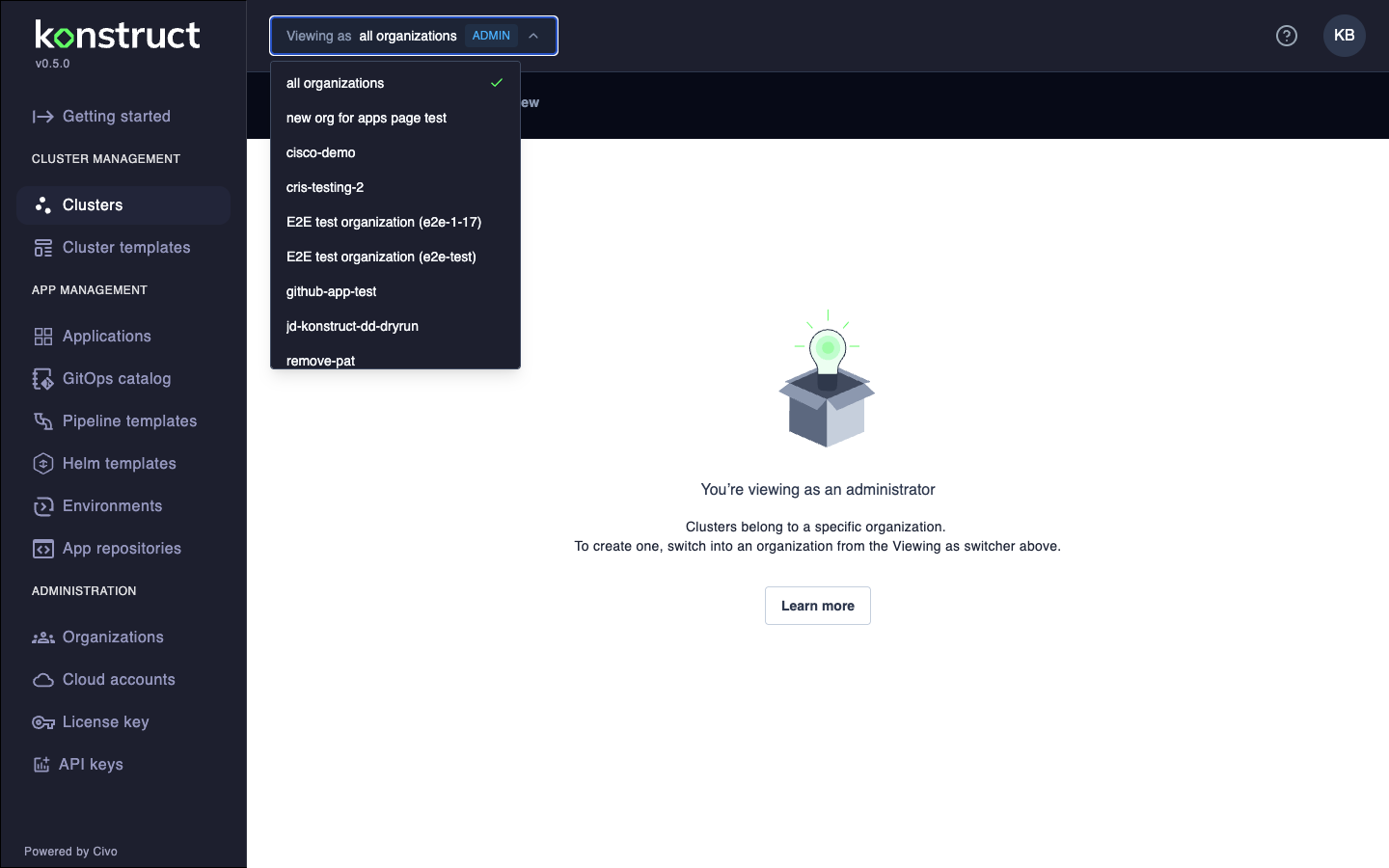
Create Management Cluster
-
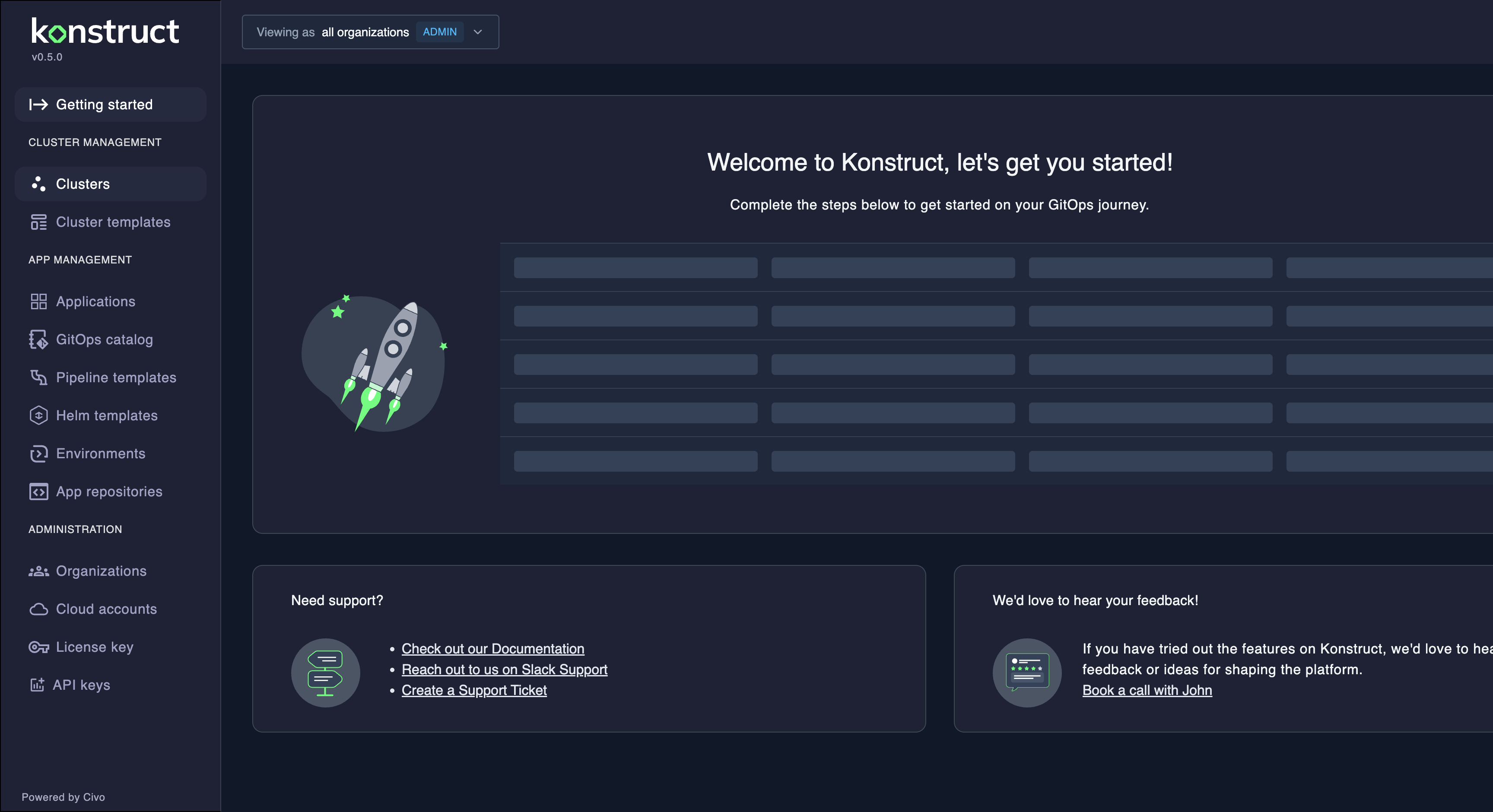
Use the Viewing as switcher in the top banner to select the organization you want to provision the cluster for
-
Navigate to Clusters in the left sidebar
-
Click Create management cluster
-
Choose a template:
- Default template: Use the default Konstruct cluster configuration
- Custom template: Use your own pre-defined custom template
-
Configure the cluster settings:
- Hosted
- Self-Hosted
On the Hosted Control Plane, management clusters are provisioned on Civo.
| Field | Description |
|---|---|
| Cluster name | Enter a name for your cluster (e.g., team-mgmt-your-company-io) |
| Cloud account | Select your Civo cloud account |
| Region | Choose the Civo region (e.g., NYC1, LON1, FRA1) |
| Node size | Choose the Civo instance size (e.g., g4s.kube.large) |
| Number of nodes | Set the node count based on your control plane requirements |
The default management cluster configuration requires nodes with a minimum of 6 CPU. 3 nodes at g4s.kube.large is a good minimal default for the Civo-hosted management cluster.
| Field | Description |
|---|---|
| Cluster name | Enter a name for your cluster (e.g., team-mgmt-your-company-io) |
| Cloud account | Select the AWS account to provision the cluster in |
| Cloud region | Choose the AWS region (e.g., us-west-2) |
| AMI type | Select the Amazon Machine Image type (e.g., AL2_x86_64) |
| Instance size | Choose the EC2 instance type (e.g., m5.2xlarge) |
| Number of nodes | Set the node count based on your control plane requirements |
The default team management cluster configuration includes Argo CD specifications that require nodes with a minimum of 6 CPU. If you're using the default Konstruct template, 3 m5.2xlarge instances is a good minimal default to accommodate the necessary control plane system load.
If you need to stay extremely slim, you can adjust these defaults by creating a custom cluster template with reduced resource requirements.
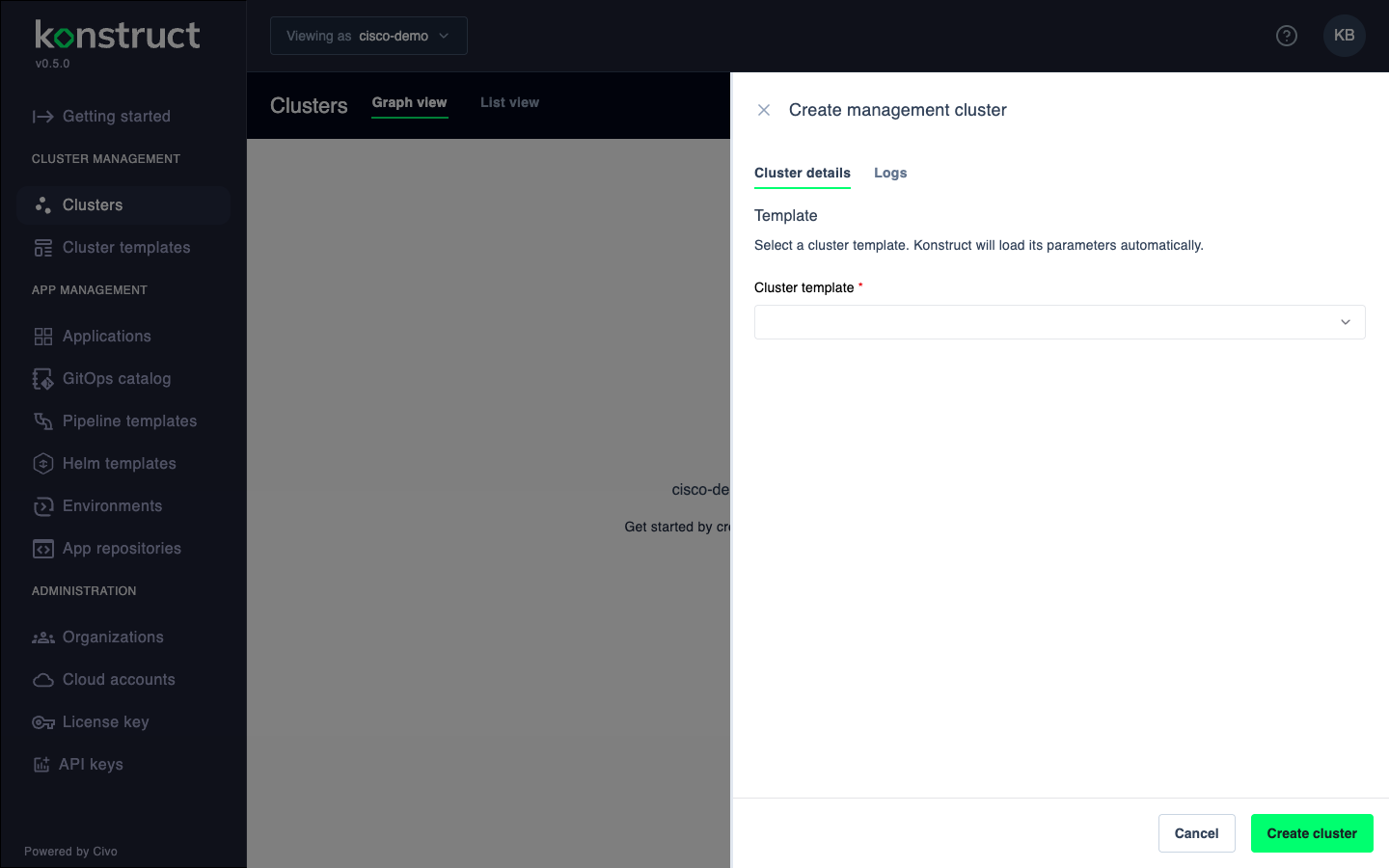
-
Expand Advanced options to configure additional settings if needed
-
Click Create cluster to start provisioning
Monitor Provisioning Progress
Management cluster provisioning takes approximately 20-30 minutes. You can monitor the progress in real-time:
- On the Clusters page, click on your management cluster in the graph view
- In the details panel, click the Logs tab
- Select the log stream from the dropdown to view live provisioning logs
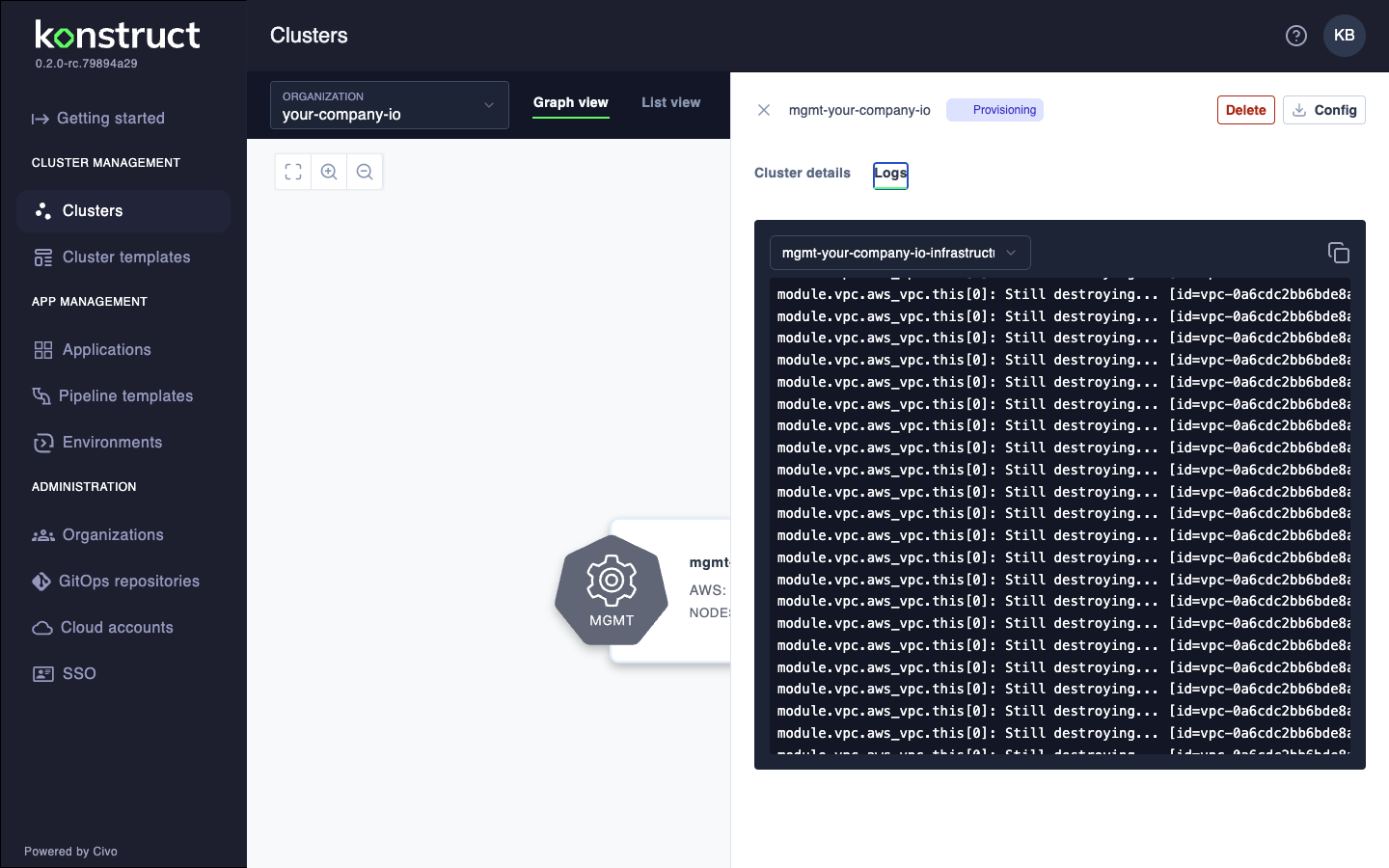
The logs show real-time output from the infrastructure provisioning process, including Terraform operations and cluster setup steps.
View Bootstrapping in Argo CD
You can also monitor the cluster bootstrapping progress in Argo CD:
- Navigate to your Argo CD instance (typically at
argocd.<your-domain>) - Log in via Vault using your Konstruct credentials
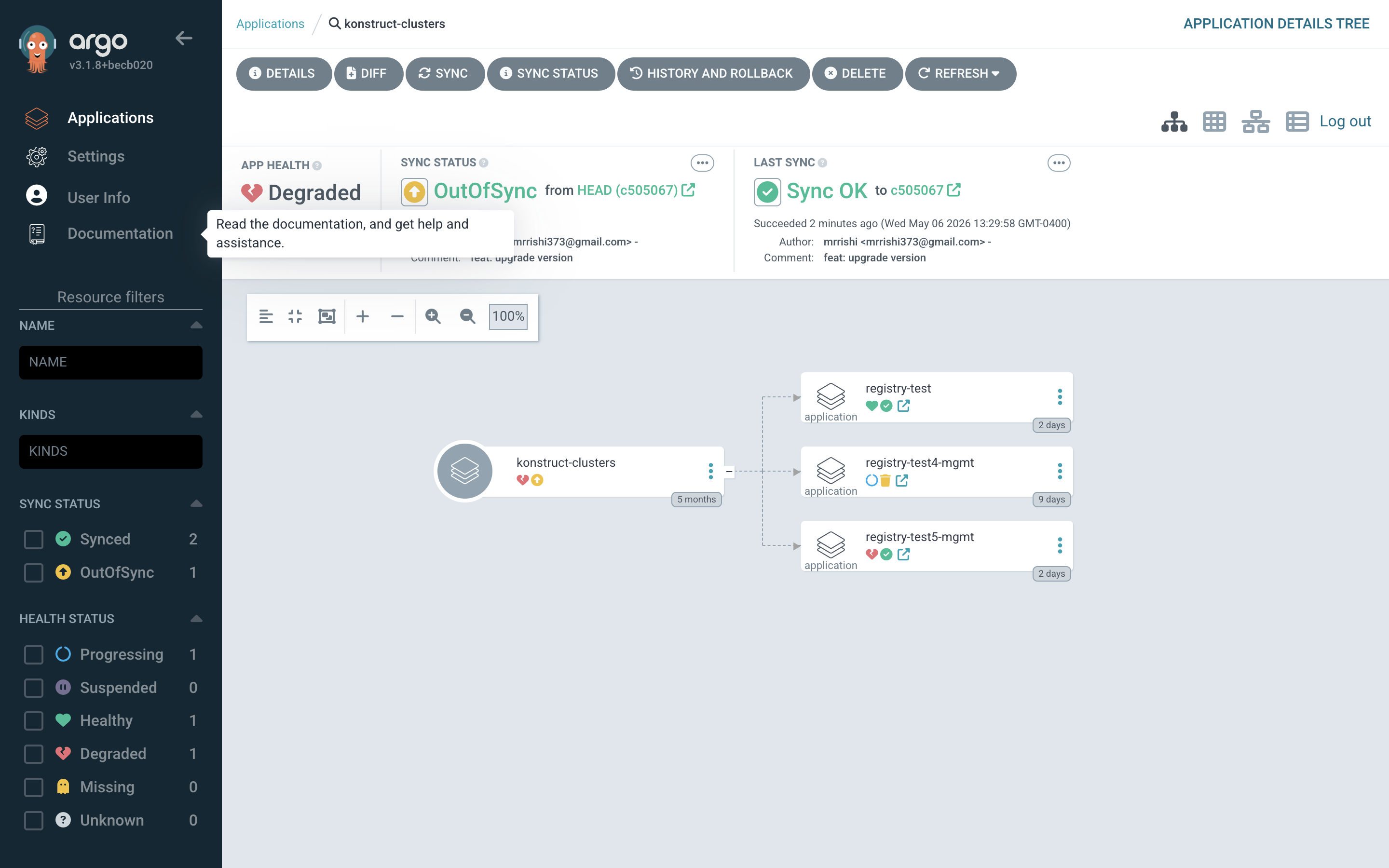
- View the konstruct-clusters application to see the bootstrapping status
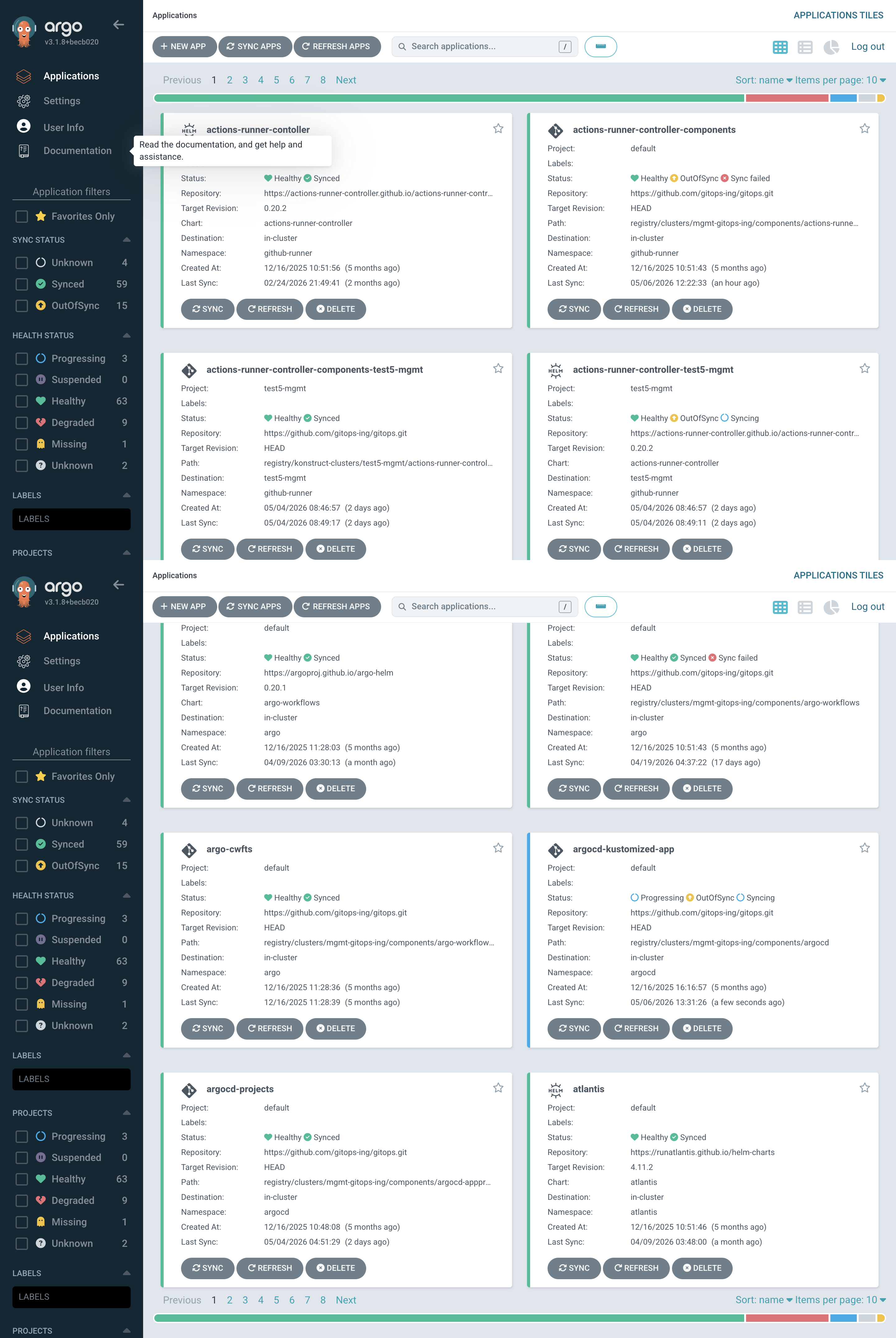
The Argo CD view shows:
- App Health: Overall health of the cluster bootstrapping
- Sync Status: Whether the cluster configuration is in sync
- Resource Tree: Visual representation of cluster components being deployed
Explore Registry Sync Waves
Click on the registry application tile in the konstruct-clusters view to see detailed sync wave progress. This shows each component being deployed in order:
- From the konstruct-clusters application, click the registry-mgmt-your-company-io tile
- The tree view displays all resources being deployed with their sync status
During bootstrapping, you'll see:
- Synced (green): Components that have been successfully deployed
- OutOfSync (yellow): Components waiting to sync in later waves
- Progressing (blue): Components currently being deployed
During provisioning, it's normal for apps to temporarily fall into a failed state. The bootstrapping process has built-in circuit breaking and retry logic in the provisioning sequence. If you see an error state for a brief period, be patient—the system will automatically retry and recover.
The sync waves ensure dependencies are deployed in the correct order, with foundational components like cert-manager and external-dns deploying before applications that depend on them.
Cluster Fully Synced
Once all components have finished deploying, the konstruct-clusters application will show a Synced status with all resources healthy:
The registry application will also show all components synced and healthy:
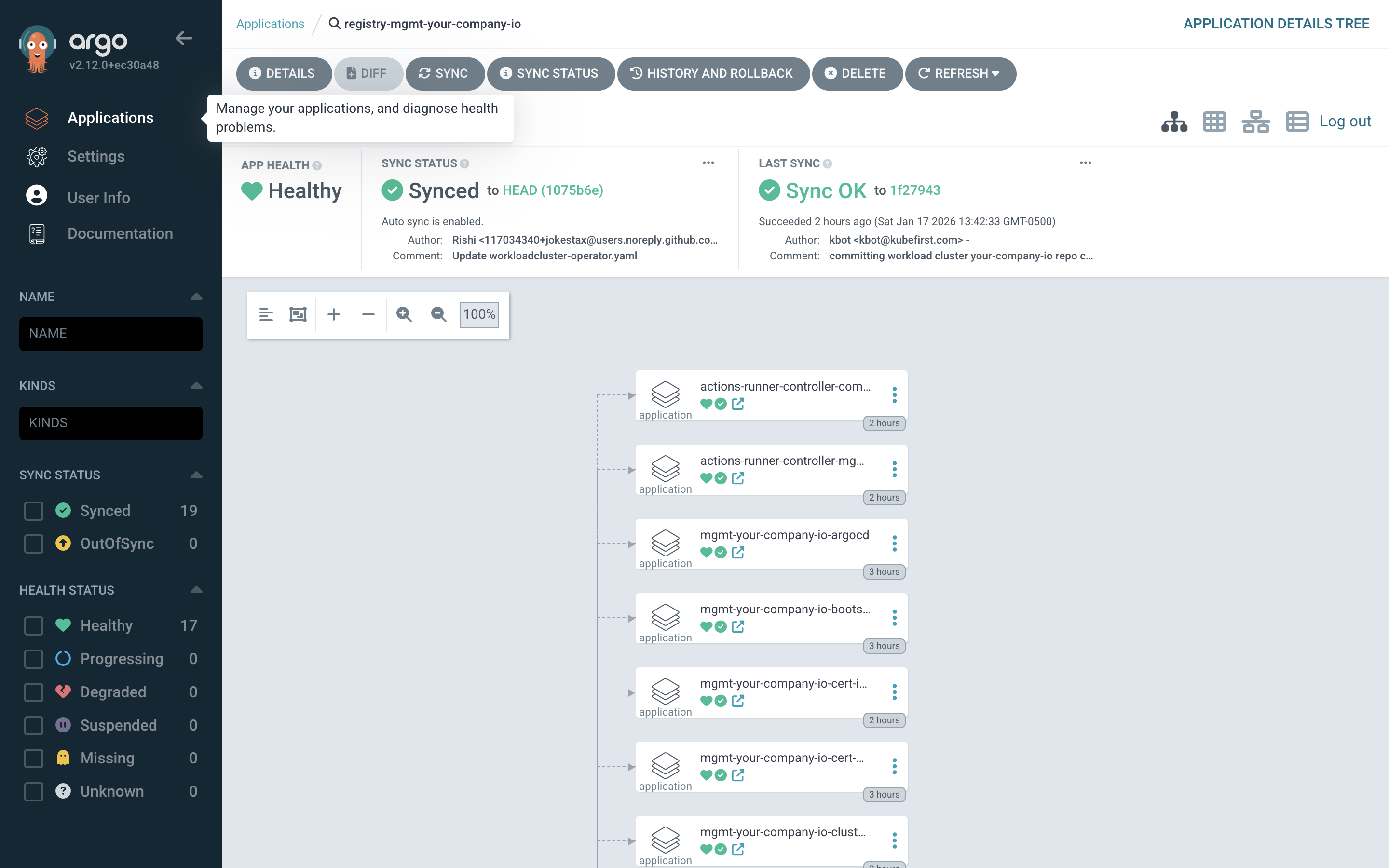
When you see all applications in a Healthy and Synced state, your management cluster is ready to use. You can now:
- Create your first workload cluster - Provision clusters where your applications will run
- View your applications in Konstruct - Navigate to the Applications page in the Konstruct UI to manage deployments
What's Next?
After your management cluster is provisioned:
- Create workload clusters to deploy applications
- Create environments to organize your deployments
- Register applications to deploy to your clusters