Pipeline Templates
View and understand pipeline templates that standardize CI/CD workflows across your applications.
Summary
Pipeline templates define the steps, variables, and deployment patterns that applications can use. Create templates once and apply them to multiple applications for consistent deployments.
Prerequisites
- Platform Admin or Team Admin role
- Access to the Konstruct UI
- At least one environment created
View Pipeline Templates
- Navigate to Pipeline Templates in the left sidebar
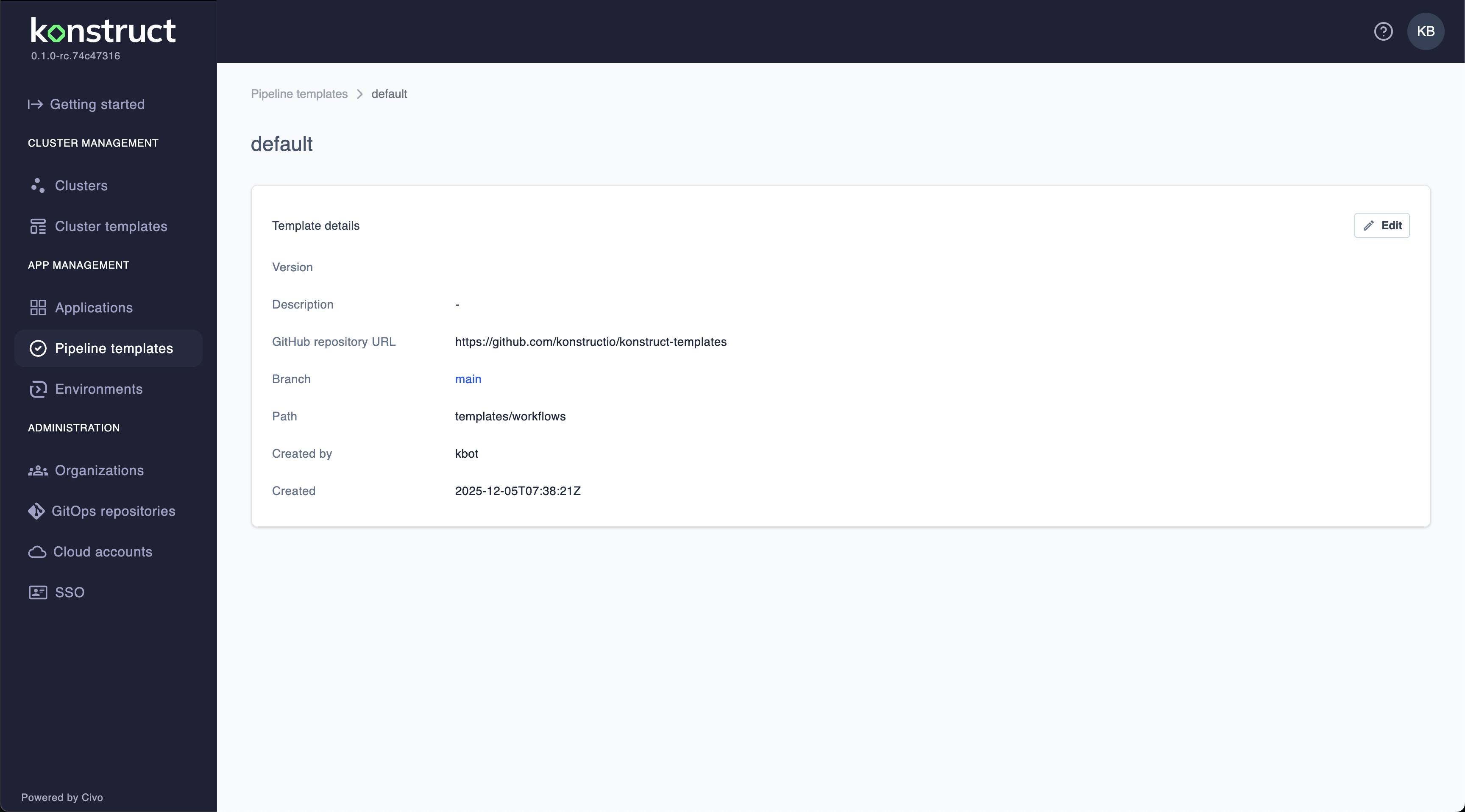
Default Pipeline Template
Konstruct includes a production-ready default pipeline template:
- GitHub repository URL:
https://github.com/konstructio/konstruct-templates - Branch:
main - Path:
templates/workflows
This template automatically provides two GitHub Actions workflows for your applications:
publish.yaml Workflow
- Triggers on commits to
mainbranch - Builds your Docker container from the Dockerfile
- Tags images with semantic versions (e.g., v1.2.3)
- Publishes containers to your AWS ECR registry
- Creates and publishes Helm charts
- Manages versioning automatically
deploy.yaml Workflow
- Manages progressive deployments through environments
- Deploys to Stage 1 (e.g., dev environment)
- Promotes to Stage 2 (e.g., staging environment)
- Advances to Stage 3 (e.g., production environment)
- Applies to all clusters within each environment
- Includes health checks and rollback capabilities
How Templates Work
When you register an application with Konstruct:
- Workflow Files Added: The
publish.yamlanddeploy.yamlfiles are automatically added to.github/workflows/ - Helm Charts Created: A
charts/directory with Kubernetes manifests is generated - Environment Integration: Workflows are configured based on your environment stages
- Automatic Execution: Pipelines run on every commit to main branch
Customizing the Default Template
You can fork the upstream template repository and customize:
- Build steps and Docker strategies
- Testing and security scanning stages
- Deployment patterns and approval workflows
- Environment-specific configurations
- Notification and monitoring integrations
Best Practices
- Start Simple: Create basic templates and add complexity as needed
- Use Variables: Make templates flexible with well-named variables
- Include Security: Add security scanning and compliance checks
- Document Variables: Provide clear descriptions for all template variables
- Test Templates: Validate templates with a test application first
What's Next?
- Learn about template usage in apps
- Register applications to use pipeline templates
- Create environments for deployment targets