Civo Bootstrap Installation
Deploy Konstruct on a Civo Kubernetes cluster with a self-hosted GitLab instance as the git provider. Three steps: create a Civo cluster, create a GitLab OAuth App, then run Terraform.
In the 0.7 release line, the Civo self-hosted control plane supports GitLab (self-hosted or SaaS) and GitHub as git providers, with Civo DNS or Cloudflare as the DNS provider. The terraform roots are organized as a provider matrix — this guide follows konstruct-bootstrap/civo-gitlab; swap in civo-github for the GitHub flow.
Prerequisites
- A Civo account and API key (get one here)
civoCLI (install guide)- Terraform 1.5+
kubectlv1.30+- A domain you control, managed either as a Civo DNS domain in the same Civo account as the cluster or as a Cloudflare zone
- A GitLab instance reachable from the cluster, and a user with Owner access to a group
Step 0: Create a Civo Kubernetes Cluster
If you already have a cluster, skip to Step 1.
civo apikey save konstruct <YOUR_API_KEY>
civo apikey current konstruct
civo region use NYC1

civo kubernetes create konstruct-mgmt \
  --region NYC1 \
  --nodes 3 \
  --size g4p.kube.large \
  --version 1.35.0-k3s1 \
  --remove-applications "Traefik-v2-nodeport" \
  --create-firewall \
  --firewall-rules "80;443;6443" \
  --wait
Traefik is removed because Envoy Gateway is the platform ingress — leaving it installed wastes a NodePort and a load-balancing hop. Civo clusters provision fast — usually within a few minutes.
Cluster requirements:
- Minimum 3x
g4s.kube.largenodes (the platform deploys ESO, cert-manager, Envoy Gateway, external-dns, Dex, Vault in HA, and the Konstruct platform with its operators); pin a current k3s--versionso your nodes match the release line your team validates against - Firewall must allow
80and443(Let's Encrypt HTTP-01 challenges and platform traffic) plus6443(Kubernetes API) - No special CNI or storage requirements — k3s defaults work
On k3s the control plane shares the nodes with your workloads. On g4s.kube.medium nodes the full platform runs at 85–105% node memory: the API server becomes intermittently unreachable and operators restart continuously. g4s.kube.large is the working minimum; use a performance tier (for example g4p.kube.large) when the platform also builds and serves platform theme workloads.
Verify nodes:
civo kubernetes config konstruct-mgmt --region NYC1 > ./konstruct-mgmt.kubeconfig
export KUBECONFIG=$PWD/konstruct-mgmt.kubeconfig
kubectl get nodes
# Expect 3 nodes in Ready state
Step 1: Create a GitLab OAuth App
Konstruct uses a GitLab OAuth application on your self-hosted instance for user authorization and repository management.
Create a group
If you don't already have one, create the GitLab group that will own your GitOps repositories (for example, platform). Your GitLab user needs Owner access to it.
Create the OAuth application
- In your GitLab instance, go to one of:
- Instance-level: Admin Area > Applications > New application
- Group-level: Your group > Settings > Applications > Add new application
- Configure:
-
Name:
konstruct-<your-domain>(e.g.,konstruct-example-com) -
Redirect URI:
https://konstruct.<your-domain>/api/v1/gitlab/callback -
Scopes: check
api,read_repository,write_repository -
Leave Confidential checked
-
- Click Save application
- Note the Application ID and Secret — you will need both for
terraform.tfvars
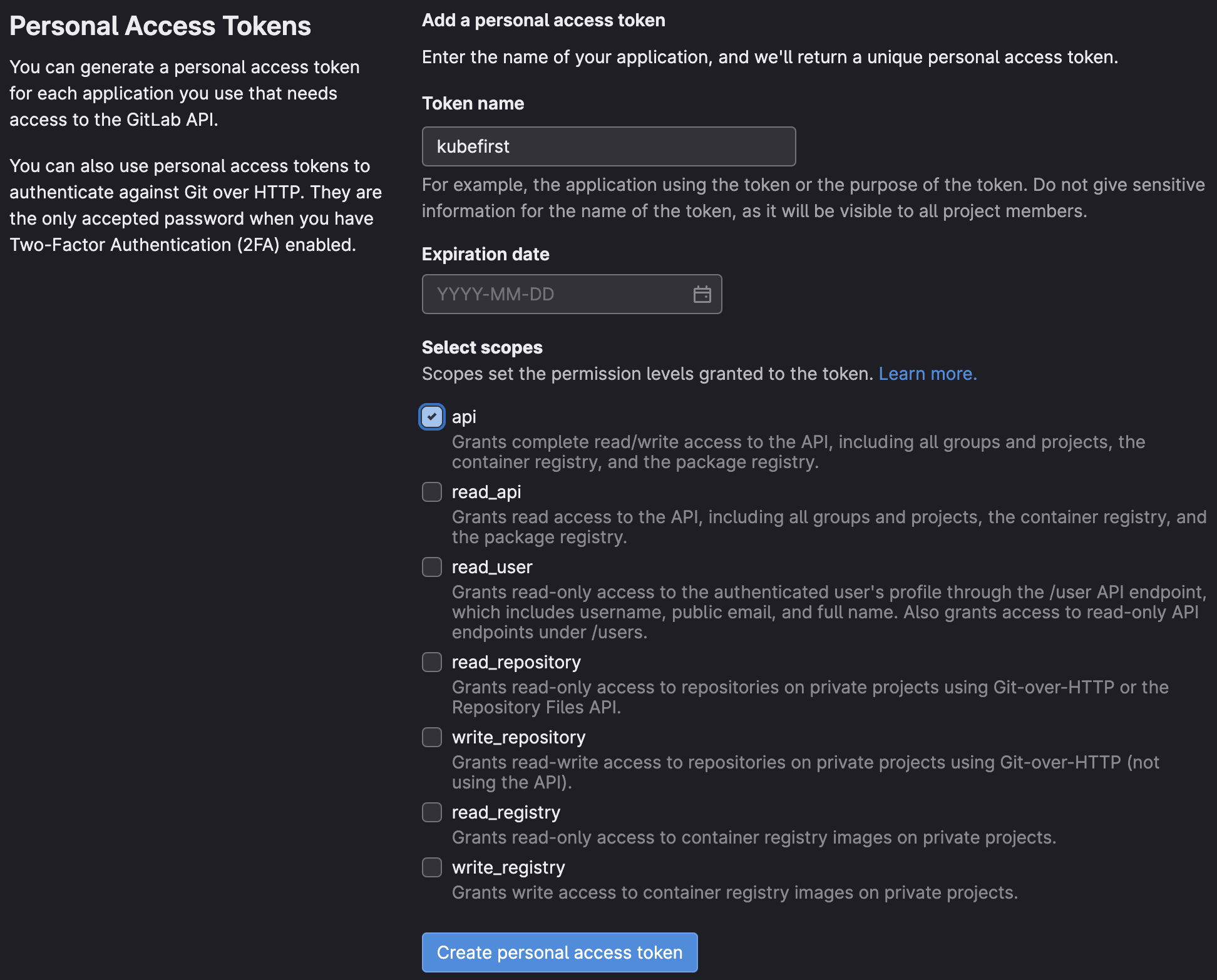
The redirect URI must exactly match https://konstruct.<your-domain>/api/v1/gitlab/callback. A trailing slash or wrong path will cause OAuth to fail silently. (The /api/v1/auth/callback path used elsewhere in these docs belongs to the Dex OIDC client, not the GitLab application.)
What the scopes grant
| Scope | Purpose |
|---|---|
api | Create and manage repositories, webhooks, and group members |
read_repository | Clone and read GitOps repository contents |
write_repository | Push GitOps manifests during cluster provisioning |
Step 2: Choose a DNS Provider
Konstruct's external-dns manages DNS records for the platform hostnames (konstruct.<domain>, dex.<domain>, vault.<domain>).
Option A: Civo DNS (recommended for Civo-native installs)
Register the domain in the same Civo account that runs the cluster — external-dns reuses the civo_token terraform already has, so there is no extra credential to mint:
civo domain create <your-domain> # a 409 duplicate means it's registered in ANOTHER Civo account
Point your registrar's nameservers at ns0.civo.com and ns1.civo.com, and set dns_provider = "civo" in terraform.tfvars (Step 3). No Cloudflare token is needed.
Two Civo DNS caveats: the dns_provider flag is landing in the konstruct-bootstrap/civo-* roots via konstruct-aws#7 (until it merges, Civo DNS installs use the hotfix-streamline lineage), and the wildcard apps certificate (apps-wildcard-tls, used for platform theme app hostnames) requires DNS-01 and stays Pending on Civo DNS until a Civo DNS-01 solver ships — platform hostnames (konstruct., dex., vault., harbor.) all issue normally via HTTP-01.
Option B: Cloudflare
Your zone lives on Cloudflare and external-dns writes records there via an API token:
- Go to Cloudflare API Tokens and click Create Token
- Use the Edit zone DNS template
- Configure:
- Permissions:
Zone / DNS / Edit, plus addZone / Zone / Read - Zone Resources:
Include / Specific zone / <your-domain>
- Permissions:
- Click Continue to summary, then Create Token, and copy the token value (shown once)
Verify the token before using it:
curl -s -H "Authorization: Bearer <YOUR_TOKEN>" \
  "https://api.cloudflare.com/client/v4/zones?name=<your-domain>" | jq '.success'
# Expect: true
Step 3: Run Terraform
Terraform installs the platform services and the Konstruct chart onto your cluster, and creates a Civo Object Store for platform state.
git clone https://github.com/konstructio/konstruct-aws.git
cd konstruct-aws/konstruct-bootstrap/civo-gitlab
The repository is organized as a provider matrix under konstruct-bootstrap/ — civo-gitlab, civo-github, aws-gitlab, aws-github — each a thin root over the shared modules/bootstrap-* modules. Pick the root matching your cloud and git provider; a terraform.tfvars.example in each root is the starting point.
Generate a bcrypt password hash
The dex_config.admin_password field requires a bcrypt hash of your desired login password:
htpasswd -nbBC 10 "" 'your-password' | tr -d ':\n' | sed 's/$2y/$2a/'
Copy the output (starts with $2a$10$...). Remember the plain text password — you'll use it to login to Konstruct as the kbot user.
Use a simple alphanumeric password. Special characters like ! can break shell quoting.
Generate a shared OIDC secret
The oidc_client_secret in konstruct_api_config must match the secret in dex_config.static_clients[0]:
openssl rand -hex 32
Configure terraform.tfvars
cluster_name     = "konstruct-mgmt"
civo_region      = "NYC1"
civo_token       = "<YOUR_CIVO_API_KEY>"
domain           = "your-domain.com"
alerts_email     = "alerts@your-domain.com"
gitops_repo_name = "platform-gitops"

konstruct_chart_version = "0.7.0"  # pin the specific published version your team validated — see note below

# DNS provider from Step 2: "civo" reuses civo_token (leave cloudflare_api_token
# unset); "cloudflare" requires the token from Step 2 Option B.
dns_provider         = "civo"
cloudflare_api_token = ""  # only for dns_provider = "cloudflare"

# Pins the konstruct-templates ref for the default cluster template catalog and
# bootstrap hydration. Leave at "main" unless you are validating a templates branch.
default_templates_ref = "main"

# Publishes the wildcard apps listener (https-apps) and the Harbor listener on
# the Gateway. Required for platform theme app delivery; harmless
# to enable on day one and saves a Gateway change later.
enable_foreman_gateway = true

gitlab_config = {
  owner         = "platform"                        # Group from Step 1
  base_url      = "https://gitlab.your-company.com" # Your self-hosted GitLab
  client_id     = "<APPLICATION_ID>"                # From Step 1
  client_secret = "<SECRET>"                        # From Step 1
  redirect_url  = "https://konstruct.your-domain.com/api/v1/gitlab/callback"
}

konstruct_api_config = {
  admin_user            = "kbot"
  client_email          = "admin@your-domain.com"
  license_validator_url = ""
  oidc_client_id        = "konstruct"
  oidc_client_secret    = "<YOUR_SHARED_SECRET>"    # From openssl command above
  webhook_url           = ""
}

dex_config = {
  admin_password = "$2a$10$..."  # bcrypt hash from htpasswd command above

  # Azure AD (optional — leave empty if not using Azure SSO)
  azure_client_id     = ""
  azure_client_secret = ""
  azure_tenant_id     = ""

  static_clients = [
    {
      id     = "konstruct"
      name   = "Konstruct"
      public = false
      redirectURIs = [
        "https://konstruct.your-domain.com/api/v1/auth/callback"
      ]
      secret = "<YOUR_SHARED_SECRET>"  # Must match oidc_client_secret above
    }
  ]
}
konstruct_chart_version becomes the Argo CD targetRevision for the platform itself. Pin the version your team has validated rather than a moving line — release candidates look like 0.7.0-rc.<8-char-sha>. After install you change it in GitOps (registry/clusters/<name>/components/konstruct-system/konstruct.yaml), never in terraform.
Apply
terraform init
terraform plan   # Review: expect ~38 resources to add on a fresh install
terraform apply
Open a second terminal and watch pods come up: kubectl get pods -A -w
This creates:
- A Civo Object Store (
<cluster_name>-state-store) and credentials for platform state - Namespaces:
vault,external-secrets-operator,dex,external-dns,envoy-gateway-system,konstruct-system - CRDs:
helmtemplates,pipelinetemplates, Gateway API - Helm releases: External Secrets Operator, Cert Manager, Envoy Gateway, External DNS (Cloudflare), Vault (HA Raft), Dex, Konstruct
- Envoy
Gatewaywith HTTPS listeners forkonstruct.<domain>,dex.<domain>,vault.<domain>, plus an HTTP-to-HTTPS redirect - Vault initialization and configuration jobs (init, unseal, seed secrets)
- ClusterSecretStore (
vault-kv-secret), ClusterIssuer (letsencrypt-prod) - The
konstruct-initial-statesecret that pins yourchart_versionfor Argo CD
Vault initialization adds a few minutes — the vault-handler and vault-config jobs must complete before Dex and Konstruct become fully ready.
Step 4: Verify DNS and TLS
DNS records are created automatically by external-dns in your provider — Civo DNS records land in the same account's domain (make sure your registrar already points at ns0/ns1.civo.com), and Cloudflare zones need no manual delegation since the zone already lives there.
# 1. Gateway has an external address (Civo load balancer)
kubectl get gateway -n default
kubectl get svc -n envoy-gateway-system

# 2. external-dns has written the records
kubectl logs -n external-dns deploy/external-dns | tail -20
dig konstruct.your-domain.com +short

# 3. Certificates are issued (HTTP-01 via the Gateway)
kubectl get certificates -A
kubectl get challenges -A
Certificates stay Pending until DNS resolves to the load balancer; this usually completes within a few minutes on Cloudflare.
Step 5: Login and Onboard
Check readiness:
kubectl get pods -n konstruct-system
kubectl get certificates -A
Once certificates show Ready = True:
- Open
https://konstruct.<your-domain> - Login with username kbot and the plaintext password you hashed in Step 3
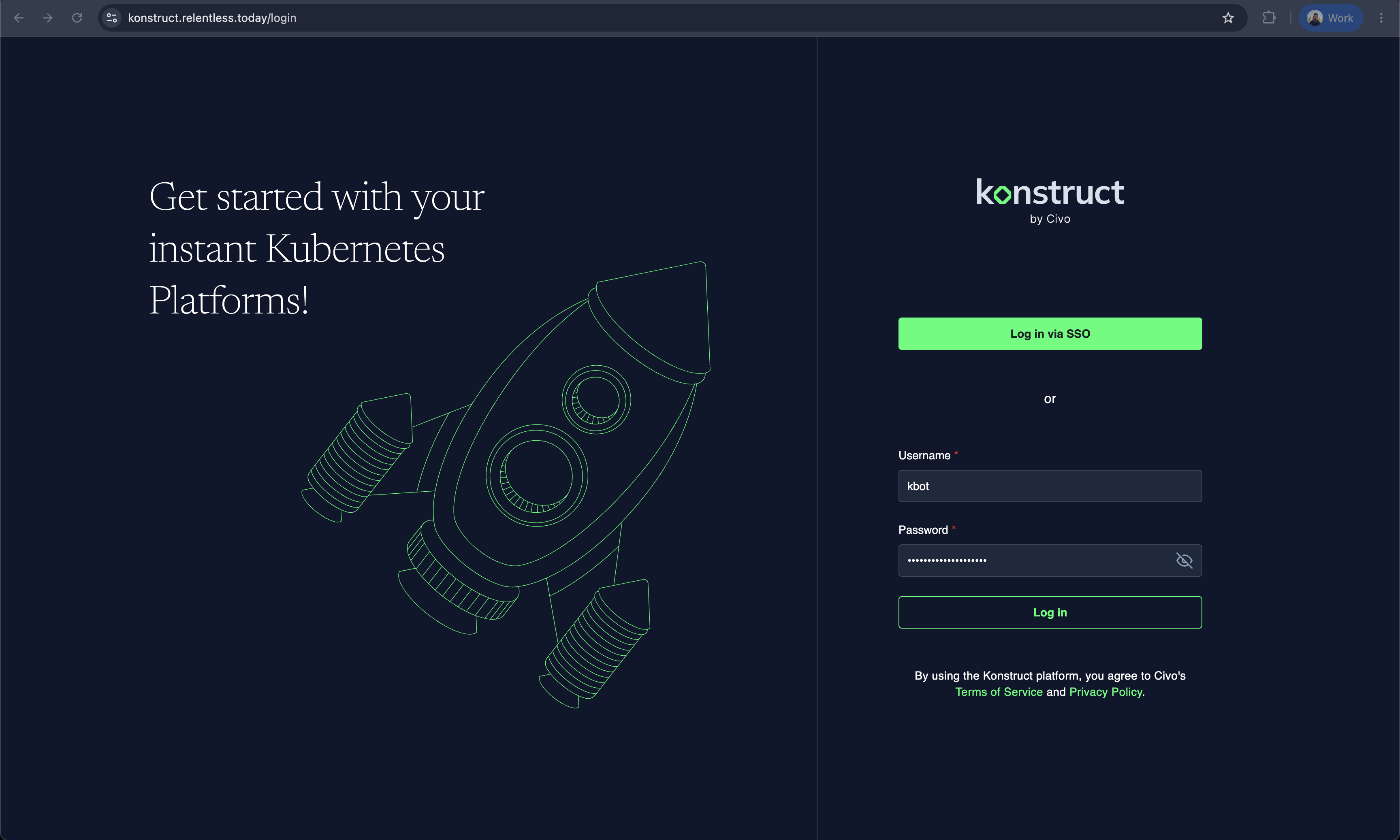
Connect GitLab
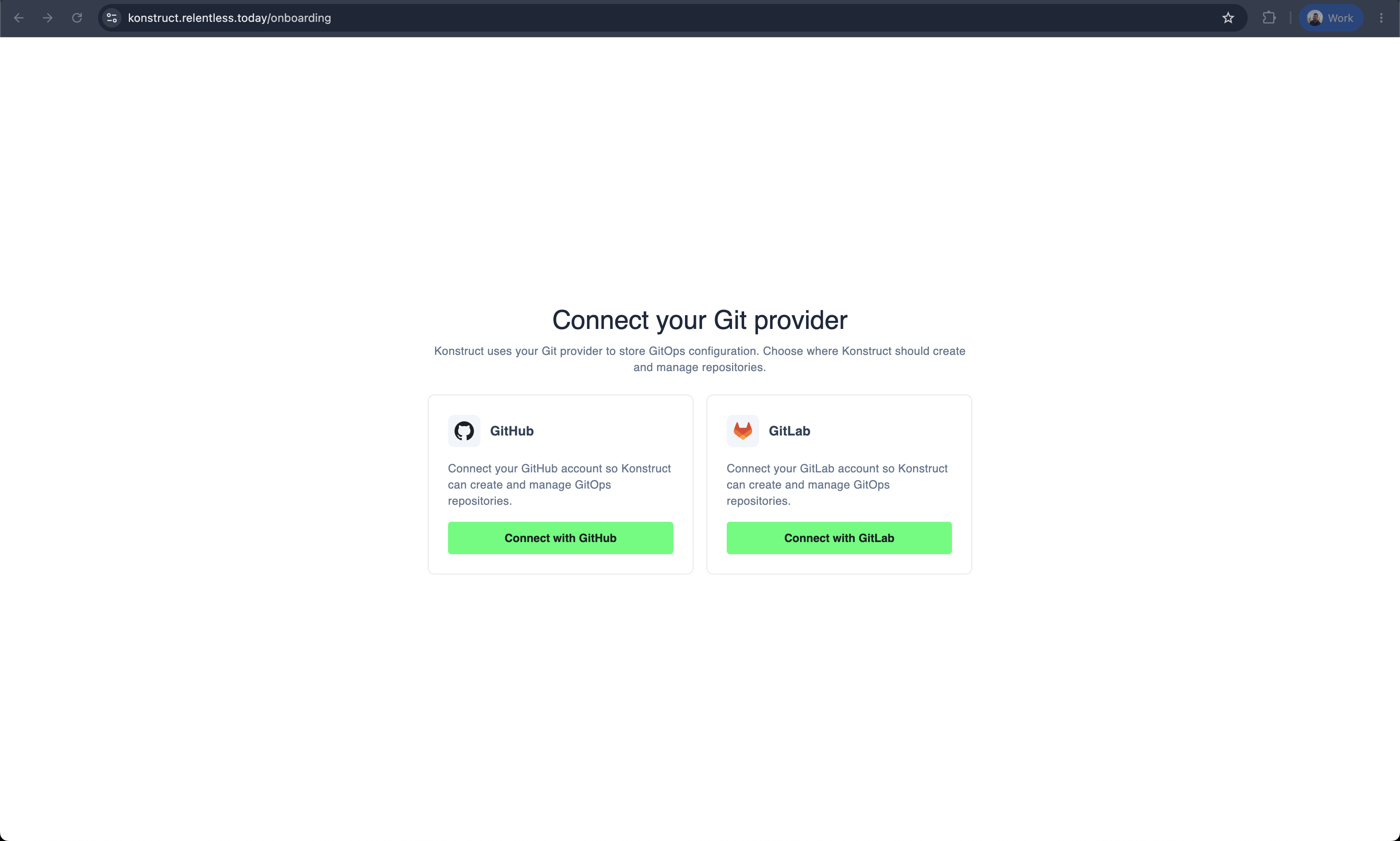
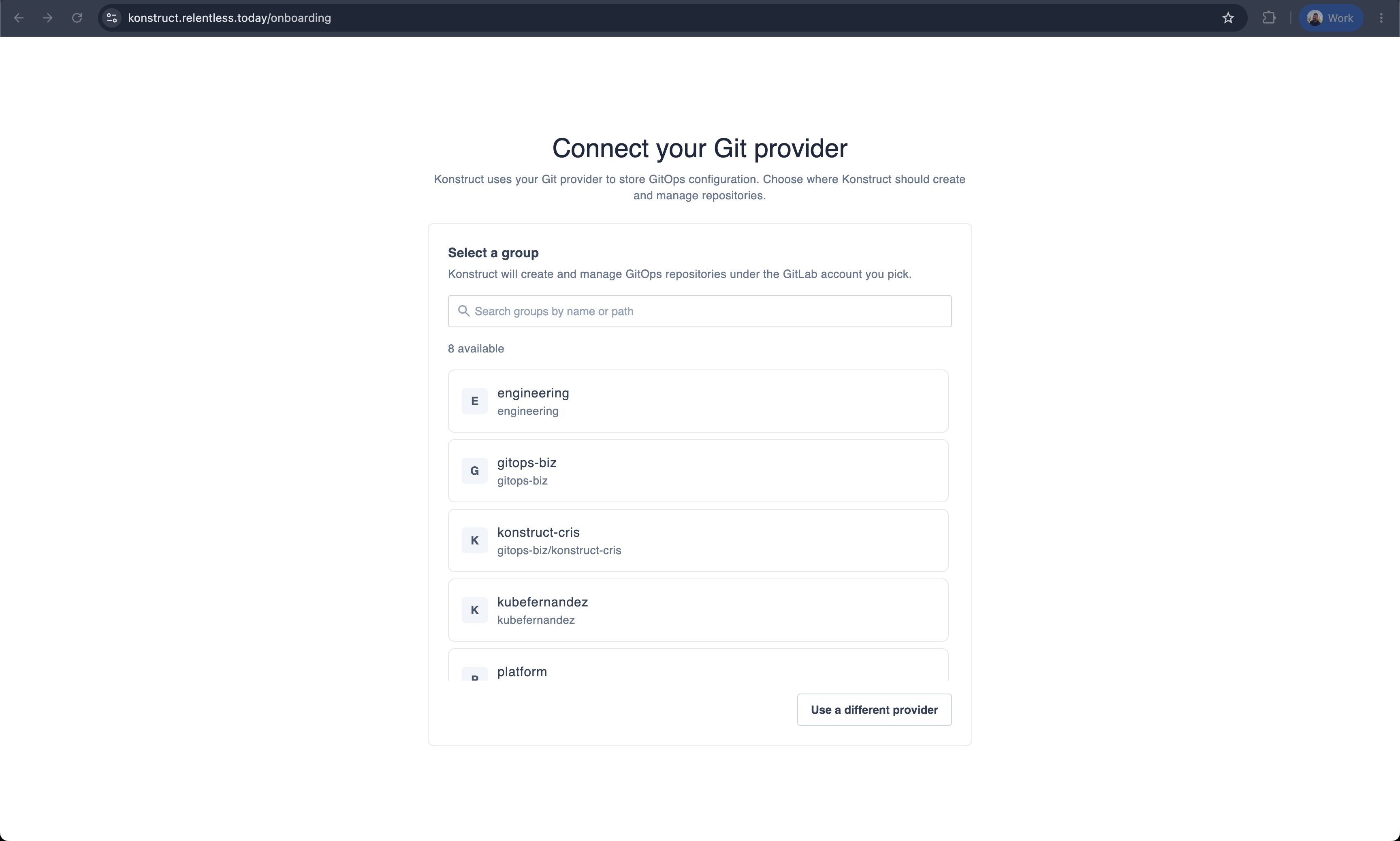
After login, Konstruct redirects you to the onboarding page: "Connect your Git provider".
-
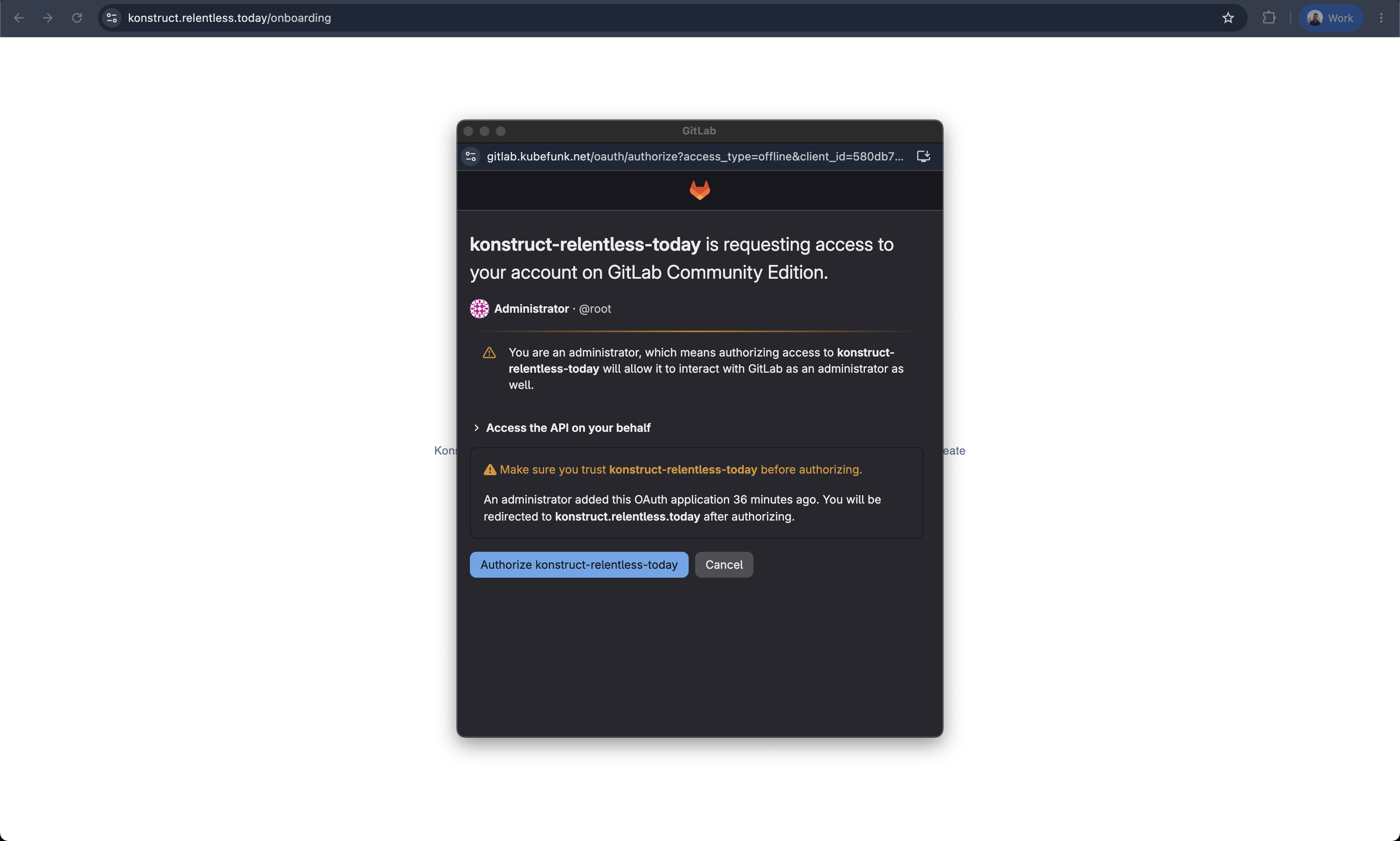
Click Connect with GitLab — a popup opens for OAuth against your self-hosted instance. Make sure you are signed in to GitLab as a user with Owner access to your group.
 note
noteIf you authorize as a GitLab administrator, GitLab warns that the application can interact with GitLab as an administrator. For production installs, prefer a dedicated non-admin user that owns only your platform group.
-
Click Authorize — the popup closes and Konstruct shows your GitLab groups
-
Select the group where Konstruct should create and manage repositories (only groups where you have Owner access appear)
Welcome page
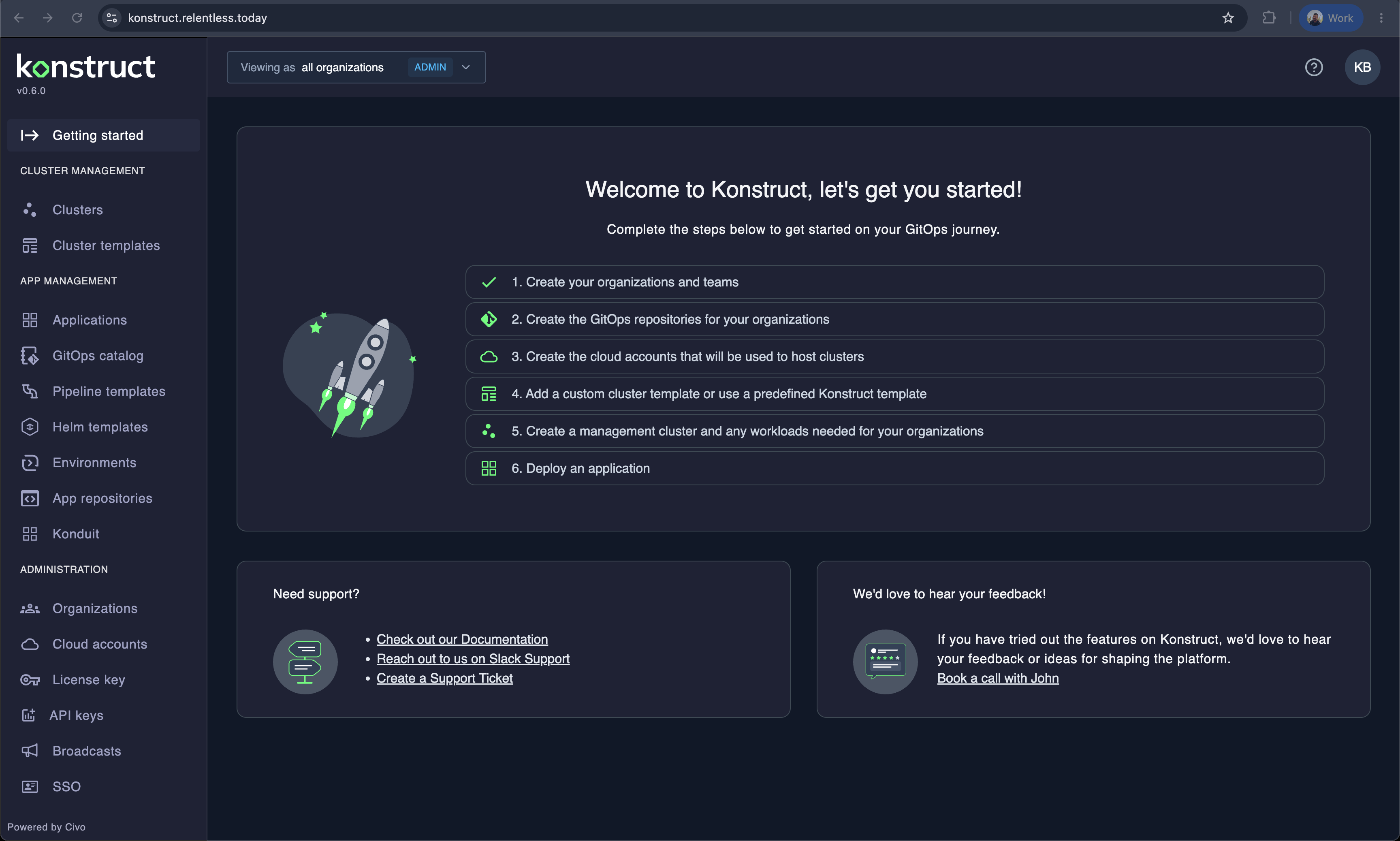
After connecting, Konstruct redirects you to the home page with a setup checklist:
What happens behind the scenes
When you connect GitLab, Konstruct automatically:
- Stores the GitLab OAuth connection
- Creates a bootstrap Project custom resource
- The team-management-operator hydrates a GitOps repository (
<group>/<gitops_repo_name>) through the registeredcontrol-planecluster template (cluster-templates/control-planein konstruct-templates at yourdefault_templates_ref) — the control plane provisions itself the same way every other cluster does - Argo CD is installed and takes over management of all platform components — including the Konstruct chart itself, pinned to the
chart_versionfrom your install (inspect withkubectl get applications.argoproj.io -n argocd— the unqualifiedapplicationsname resolves to Konstruct's own CRD) - A few minutes after Argo CD takes over, the platform ingress moves to the GitOps-managed gateway: a new load balancer is provisioned, external-dns updates all records to point to it, and certificates re-issue — don't pin the initial IP anywhere
From here, create your first organization. Each organization gets its own clusters graph with the control plane rendered at the root, plus Create management cluster and Add theme cluster actions — the management cluster form ships with the built-in Konstruct default template, so no template registration is needed before your first cluster.
Verify
# All pods running
kubectl get pods -n konstruct-system

# After onboarding completes, ArgoCD manages everything
kubectl get pods -n argocd
kubectl get applications -n argocd

# Check the gitops repo was created in your GitLab group
Troubleshooting
Dex CrashLoopBackOff: "malformed bcrypt hash"
kubectl logs -n dex deploy/dex
# error parse config file ... malformed bcrypt hash: hashedSecret too short
The bcrypt hash in dex_config.admin_password was corrupted — most commonly by shell expansion eating the $2a$10$ prefix when the hash passed through an unquoted heredoc or double-quoted string. Fix the value in terraform.tfvars (paste it inside single quotes or via an editor), then re-seed Vault and let the config resync:
terraform apply -replace="module.konstruct-bootstrap-civo.kubernetes_job_v1.vault_config"
Dex recovers on its next restart once External Secrets syncs the corrected value (~10s refresh interval).
Vault jobs stuck
The vault-handler job initializes and unseals Vault; vault-config seeds platform secrets. If pods wait on Vault:
kubectl get jobs -n vault
kubectl logs -n vault job/vault-handler
kubectl get secret -n vault vault-unseal-secret
Certificates stuck in Pending
kubectl describe challenges -A
HTTP-01 challenges flow through the Envoy Gateway on port 80 — confirm your Civo firewall allows 80 and that dig konstruct.<your-domain> resolves to the gateway's load balancer IP.
OAuth fails after login
Verify the GitLab OAuth app's redirect URIs exactly match your domain, and that gitlab_config.base_url has no trailing slash.
What's Next?
- Configure cloud accounts
- Create your first cluster
- Light up the Themes surface — create a theme cluster and serve platform themes (Konduit is the flagship) on the platform you just installed